×

Archive: September 2011

Remote Desktop Apps for Android that are Worth Trying Out

Miss your desktop so much that you can’t spend a minute without looking at it? Or, do you need to access your desktop without getting up from the couch? In either case, remote desktop applications come in very handy here. The ‘magic’ happens thanks to a proprietary (ugh!) technology developed by Microsoft (not again!) called Remote Desktop Protocol. This allows users to access another computer’s graphical interface remotely.

Open source implementations of RDP have allowed other operating systems like Linux to use the technology in their own desktop computers and even mobile devices. Thanks to the relative openness of the Android platform, users can now remotely access their desktops even from their smartphones. This feature might not seem that important to average users; however, for many techies who frequently help their friends and families with their computer woes, this is one of the handiest tools around.

So, if you’re looking for some great remote desktop applications for Android, then read on as we discuss the best ones that are out there in the market.

TeamViewer Free
When it comes to Remote desktop software, TeamViewer is one of the best apps out there. The application lets you access your Windows, Mac or Linux desktop from your Android smartphone even while you’re on a call. With complete support for gestures, this application gives you full-featured access to your desktop even through Firewalls and proxy servers. The installation is simple; just download the app for your Android (1.6 or above), then, install the desktop application (available across Windows, Mac and Linux). Enter your TeamViewer ID and you’re good to go. TeamViewer uses highly secure technologies to ensure that no one but you has access to the service, making it one of the most reliable RDP apps around. The application is free to install, but the service requires you to buy a license. Even though a bit on the expensive side, it is much better than its competitors as it allows you to buy lifetime licenses thus getting rid of the hassles of recurring billing.


2X RDP Client
2X is a free RDP client for Android that lets you access your desktop from anywhere. Though it works only with Windows, 2X gives you full access to your computer in a secure way. You get a full screen experience with handy touch and gestures support. 2X also allows you to directly access published Windows applications right from the app. The app is free and it works on Android 3.0 and later devices.


Splashtop Remote
Splashtop Remote is a remote desktop app for Android that gives you full access to your Windows or Mac computer. The app not only allows you to view your desktop, it also lets you access Outlook, use PowerPoint, watch videos and even play 3D games. This powerful application can also connect to multiple computers at once making it one of the most popular Remote desktop applications out there. Splashtop Remote connects over Wi-Fi with a minimal one-touch setup. The desktop can then be controlled from the phone using gestures and touch controls. Rated 5 stars by The New York Times, Splashtop Remote Desktop is not free, but as of now, the developers have lowered the price by 50%. It is recommended that you have a high-end Android device and a dual-core CPU on your desktop.


Remote Desktop Client by Xtralogic
Remote Desktop Client by Xtralogic is a remote desktop software that lets you view and control your Windows desktop using RDP. It is the only Remote Desktop app that supports Microsoft Remote assistance and comes with a lot of interesting features. Once connected, you get to change the screen resolution and color depth (8 bit through 32 bit color support) to make the viewing experience as native as possible. The app securely connects to the desktop using SSL and supports Network Level Authentication (NLA). Remote Desktop Client also comes with a fully functional keyboard, pinch/zoom support and copy/paste between client and server. Another great thing about this application is that it connects to the desktop without the need for any server-side software. For now, it supports many Windows desktops out of the box. However, when connecting to a Linux or Mac OS X computer, you’ll need to enter the settings manually. The app is not free and is rather on the expensive side. So, you wouldn’t want to buy it if you’re looking for a remote desktop app just to play around with. That said, Remote Desktop Client is an application that will be extremely useful for people who use the feature frequently for their work.


Written by: Abhishek, a regular TechSource contributor and a long-time FOSS advocate.

Continue reading →

Google Wallet: Expectations and Doubts

Since 2004, Google has been reinventing the way we use technology. After revolutionizing the manner we search, broadcast videos, check emails, and communicate, the big G has decided to lend its golden touch to the world of payments. With Google Wallet, the search giant expects to make payments simpler, more personalized and highly secure, thus making credit cards a thing of the past.

Many tech enthusiasts are excited about Google’s latest endeavor, and those who have tried it are going gaga about it. However, calling Google Wallet a success at this point would be quite premature. As with high expectations, there are rising doubts about the service’s policies. The doubts and criticisms are from Google’s competitors as well as many of its users who are rightfully concerned about their privacy. As of now, there aren’t any visible flaws in the service, but considering Google’s bad history with users’ privacy, many people are wary about trying it, because after all, their money’s involved here. Only time will tell whether Google’s new attempt at freeing people from bulky wallets will succeed or not.

If you, like anyone else, are excited about Google Wallet, read on as we discuss the service in a little more detail.

What is Google Wallet?

Google Wallet is a new mobile payment system that allows users to store credit cards, loyalty cards, and gift cards as well as redeeming sales promotions/discounts on their mobile phone. The service uses Near Field Communications (NFC) technology to allow users to make secure payments by simply tapping their phone on a PayPass-enabled terminal. NFC technology, which has been tried and tested worldwide, is a new emerging standard for mobile payment as it is more secure than other methods like Bluetooth. So, even if you lose your phone, no one can access your Google Wallet without the PIN. This makes NFC a superior payment method when compared to credit cards and debit cards, because if you lose your card, the person stealing it can checkout even without knowing your PIN number. Moreover, Google Wallet frees up your physical wallet by combining all your shopping cards into your smartphone. This is especially convenient for folks who carry around bulky wallets; remember George Costanza’s exploding wallet?

Do I have to buy a Nexus S for that?

At the moment, yes, as Google Wallet only works on Nexus S 4G (Sprint). However, in the future, Google will be adding support for other phones as well. And don’t worry if you don’t have an NFC-enabled phone; Google will be manufacturing special NFC stickers which will help you use Google Wallet on any kind of smartphone. Google has also hinted that the service will work across non-Android phones too as they’ll be partnering with RIM and Microsoft to make their product available for everyone.

Where will it work?

As of now, Google Wallet is in its infancy, though that doesn’t mean that it won’t work anywhere. Google Wallet payment system can be used in RadioShack, McDonald’s, BP, Best Buy 7-Eleven, Subway and many other major brand outlets across America. Google plans to partner with more brands as the service matures, but don’t expect the service to be available worldwide anytime soon.

Google Wallet and the story behind it

Former PayPal employees Osama Bedier and Stephanie Tilenius develop Google Wallet. According to PayPal, Google, initially, was trying to negotiate with them for about 2 years. However, just when the deal was about to go through, Google backed out and instead hired Osama Bedier. PayPal has filed a lawsuit against Bedier and Tilenius accusing them of giving away their confidential trade secrets to Google. They’ve also accused Bedier of storing confidential information in locations such as non-PayPal computers, non-PayPal email accounts, and a Dropbox account. Despite these initial hiccups, Google Wallet has been successfully launched across the US. However, that doesn’t end all of Google’s woes as the lawsuit might haunt Google once it gets more popular.

Privacy, Security, doubts and apprehensions

Google has a bad track record when dealing with its users’ private data. Critics have raised concerns over Google storing and recording every transaction they make. The privacy policy as of now states that Google doesn’t share any private data, but it does store it. This may be a big turn off for people concerned about their privacy. Also, even though NFC is very secure, it’s not perfect. An open source device called Proxmark can easily eavesdrop on an NFC transaction. However, the chances of that happening are very slim as an NFC device’s range is very small.

Will Google be able to pull it off?

Despite the privacy and security concerns, Google might be able to turn this into a success story. However, it depends on how it executes the project and how stable it is once it’s ready for a global audience. Do let us know what you feel about the future of Google Wallet. Are you excited about it? Or are you too concerned about your privacy to try it out?

Continue reading →

Windows 8 vs. Ubuntu 11.10

When Windows announced their new operating system, that is Windows 8, everyone on the social media was buzzing about it. Meanwhile, a bunch of developers at Canonical pulled an all-nighter fixing show-stopping bugs in the upcoming version of Ubuntu.

Linux users don’t expect their distro releases to be received with as much pomp as Windows or Mac OS. However, with Unity and the amount of improvements it has gone through, there’s a certain sense of excitement amongst Ubuntuers. Furthermore, even though Ubuntu 11.10 isn’t a LTS release, it is a critical release for the folks at Canonical. Oneiric Ocelot is Ubuntu’s golden chance to covert users back to the contentious Unity interface.

For Microsoft, the stakes seem to be high this time. Unlike then when it enjoyed a complete monopoly over the tech industry, Microsoft’s billion-dollar enterprise has taken huge visible hits thanks to the growing dominance of Apple and Android. Linux, which Microsoft once thought was over and done with, has proven itself to be a palpable threat to Microsoft’s server and mobile departments. Though Windows 8 and Ubuntu 11.10 differ hugely from each other, both in ideology and in design, they bring in a lot of similar features taking the competition up a notch.

Here’s a quick comparison between the similarities in Ubuntu 11.10 and Windows 8:


Brand new interface

Both Ubuntu and Windows 8 will sport a brand new interface. While Windows 8 will be using the tile-based Metro UI, Ubuntu will be using the tried, tested, criticized and condemned Unity interface. The tiled Metro UI is a huge step forward for Microsoft as it makes it easier for them to adapt Windows on smaller form factors. Microsoft, decimated by the rapid growth of mobiles and tablets, has finally admitted that the standard desktop is breathing its last. Canonical on the other hand, saw this coming way before Microsoft. I won’t be naïve as to accuse Microsoft of blatantly ‘copying’ this approach, but considering what they’ve been doing in the past, I won’t be surprised even if they actually did that. Unity, as the name suggests, will make Ubuntu easy to adapt and use on devices other than desktops and laptops. Thus, users will get the same experience across all of their devices. Apple too is slowly taking this approach by adding certain iOS-like features on their desktop operating system.

Windows 8 Metro UI


Ubuntu Unity


Desktop as you know it is dead

With Windows 8, Microsoft will do away with the traditional desktop. Of course, not entirely, but we’ll certainly see more and more people using the new interface. This will ensure that users can switch seamlessly between their different devices. Now, it may be too early to predict these things, but my opinion is that once Windows 8 is released, and if it gets successful, we may actually see a growth in Ubuntu’s market share. Windows 8’s Metro UI will do what Canonical and GNOME 3 are trying to do, that is, move people away from the dogmatic desktop UI. This will liberate many users from the conformity and push them to try out new and different things. Unity can cash in on this opportunity by further polishing their Unity UI so as to make it more appealing to new users.


Social from the start

Ubuntu, for a long time, has included essential social media features in its default desktop. Microsoft on the other hand, was lagging behind in this department. With Windows 8 though, things are about to change as the new Metro UI includes social media capabilities built-in. To be honest, up until now, the social media experience Gwibber 2.0 provided wasn’t at par with the apps that are out there on Windows and Apple. With Gwibber 3, Oneiric users can proudly boast about how social-savvy their new desktop is.

More cloud integration

Windows 8 and Ubuntu 11.10 will both be tightly integrated with the cloud. Windows 8 will be able to pull photos from the cloud, share and upload them instantly. Ubuntu 11.10 on the other hand will feature Ubuntu One online backup service with 5 GB cloud storage leaving behind Microsoft in the cloud wars.


Updated Default browsers

Windows 8 will ship with Internet Explorer 10 while Oneiric will include the improved Firefox 7.


App Stores

The Software Center has been part of Ubuntu for quite a while, but it wasn’t as appealing as many new users would expect it to be. With 11.10, that is about to change because a completely revamped app store will be a part of the desktop. On Windows 8, there will be a Windows store, allowing users to download and purchase new applications for their desktop.


New login screens

Both Ubuntu 11.10 and Windows 8 will include a new and improved login screen. They both are beautiful, but I still prefer the clean new LightDM login screen.


Microsoft’s opening up? Think again

The new Metro UI will use the innovative HTML5 technology. Now, a Windows fanboy when he hears of this will definitely be tricked into thinking that Microsoft is making significant efforts to promote open technologies. However, the truth is that Microsoft is still the conniving old wolf that will leave no stone unturned in crushing anyone who comes in their way. According to a recent Slashdot article, Windows will be using a ‘next-generation’ booting specification called Unified Extensible Firmware Interface (UEFI). Thanks to UEFI, users won’t be able to use GPL bootloaders on their Windows 8 computers, making it almost impossible for Linux enthusiasts (and new users) to install Linux distributions on their computers. If this feature is implemented, it will be a huge blow to Linux and its growing dominance over the PC market. Well played Microsoft, well played indeed.


Written by: Abhishek, a regular TechSource contributor and a long-time FOSS advocate.

Continue reading →

Things to Consider Before Buying an Android Phone

Android, the Google-owned mobile operating system, is slowly inching towards its goal of total market dominance as more and more people are making the switch. One thing that really works for Android is the fact that it offers almost all the features that its competitor iPhone offers without compromising on the user's freedom of choice.

While iPhone users are stuck with the same hardware and the same features, Android users get a lot of choices in every department. Walk in to a gadget store and ask for an Android phone; there's a huge chance that you'll be shown more than 10 different Android devices.

Even though Android offers a lot of options to its potential buyers, the element of choice can be perplexing to some people. Since its inception, the open source operating system has been loaded on many devices from a variety of manufacturers. Therefore, if you don't choose carefully, you might end up with a bad Android experience. So, before you run to your nearest gadget store, here are few things you should consider before buying one:


* Make a list of the features you need
What are you going to use the phone for? For browsing? As a camera? Or as a powerhouse smartphone to compliment your desktop? It's always better to narrow down your needs so that you won't end up buying something you don't want. If you are a bit more meticulous buyer, you can also make a list of the minimum features you need. For example, let's say you want to buy a phone with at least 5 MP camera, 256 MB RAM, 2.2 Froyo and so on. Make a list and make sure you get a phone that has all the features you want.


* Do the research first
If you go into the store and keep browsing each and every model, it gets tedious for the buyer as well as the retailer. Instead, insist on finding out all the features and prices beforehand (using the Internet of course). That way, you won't spend half your day in the store.


* Read the reviews
Sometimes, despite all the hypnotizing adverts, big brand names and eye-catching publicity stunts, the final product turns out to be quite disappointing. For example, some dual-core phones, when they came out, create quite a lot of buzz amongst tech enthusiasts. However, when the final product was reviewed, the dual core feature didn't add any significant power to the device, and the phone turned out to be a disappointment. Hence, it's better to check out phone reviews from reputed sources like Engadget so you won't end up paying a lot of cash for a second-rate product. Another advantage of watching/reading reviews is that you'll get to know the phone really well before you buy it.


* Check the OS version
Many manufacturers ship with modified versions of Android that helps them market their phones as unique products. Even though this brings a bit of variety to the market, it makes it harder for manufacturers to push updates whenever they're ready. So, you'll find several smartphones with Android 2.1 or 2.2 loaded on them even though the latest version is 2.3.4. Always lookup which Android version the phone ships with. If the phone ships with a very old version, do make sure that you can upgrade it to a newer version. On the other hand, if you always prefer the bleeding edge, you can go for pure Google phones like Nexus One and Nexus S. These phones will give you the pure Google Android experience without any modifications whatsoever.


* Check the manufacturer first
With the power of Android being leveraged by so many companies, there are also some sub-standard brands which have used Android to make themselves more popular in the market. Although you might find that these manufacturers offer Android phones at ridiculously low prices, once you get the phone, you'll be thoroughly disappointed. Many of these unknown manufacturers load Android on phones using low-quality hardware, sometimes making the phone absolutely unusable. Even if you're in luck and find it to be working perfectly, there's a good chance that if ever you have problems with it, you won't be able to find any help at all. So, always buy a phone that has been manufactured by reputed brands like HTC, Sony, Samsung, LG and Motorola. Another important thing, when you buy the phone, make sure you get the proper documents like warranty card, manual and invoice. Finally, to save valuable time in the future, make sure you store the contact details of the nearest service center for your phone.


Good luck with your first Android phone. After you buy one, don't forget to check out all the Android-related articles we've written before.

Continue reading →

Best Webcam Software Applications for Linux

The webcam has become an essential accessory for every computer user. The tiny camera above your monitor helps you chat and ‘hangout’ with all your friends from across the world or turn it into a security spy camera. Another great thing about webcams is that they help you snap your own picture without getting up from your chair. For workaholics, a webcam is a great tool to stay in touch with their colleagues and even hold meetings with them. Being this indispensable, the software for it has to be just as good as the hardware.

For Linux users, that wasn’t always the case until mainstream applications like Cheese came out. Since then, the penguin has been very friendly to the webcam. In fact, I was pleasantly surprised when my PlayStation-Eye camera, which refused to work on Windows (without a driver), worked flawlessly from the instant I plugged it in. So, if you’ve just plugged in your shiny new webcam and are looking to snap pictures or shoot videos of yourself, then here are some of the best webcam software applications for Linux.


Cheese
We’ve already reviewed Cheese thoroughly before, so I won’t talk much about it in detail. Cheese is undoubtedly the best webcam application for Linux right now. It has all the features you want and more importantly, it is mature and stable. Moreover, It was a part of Ubuntu's default application set for quite a while, so its popularity cannot be overlooked. The best thing about Cheese is its ability to add funky effects to your images in real-time, making it one of the most fun applications to try out. The project is actively developed; the latest stable version was released in July 2011.


Kamoso
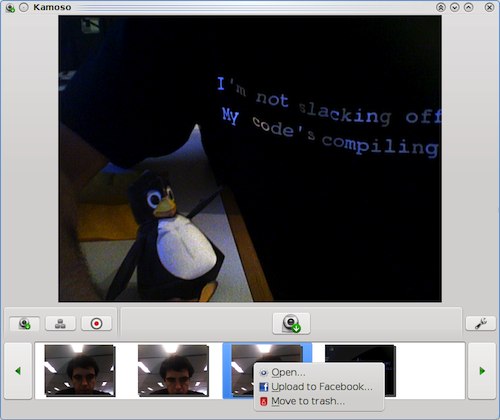
Kamoso is a Qt little webcam application for your Linux desktop. Though not as feature-loaded as Cheese, Komoso is still pretty good application if you’re looking to take pictures or videos of yourself. The interface is as simple and the whole UI is without any bells and whistles whatsoever. Once you take a snap, you can then upload it to the web by a simple click of a button. Though still in its infancy, Kamoso is a promising software that could someday go on to become a default application for the KDE Desktop.


WebcamStudio
WebcamStudio is an innovative application that creates a virtual webcam that can mix several video sources together which can then be used for live broadcasting over Bambuser, Ustream, or Stickam. Let’s say you wanted to create a screencast of you using your desktop but you also want people to see your face. You can’t do that using normal recording applications like Cheese. Here’s where WebcamStudio comes in handy. The free application lets you broadcast your desktop, your webcam, a movie, text, IRC channels, RSS feeds, animations, images or all of them at the same time. Like Cheese, you will have fun using the various GStreamer effects it comes with. Although WebcamStudio is still a new project, it is a promising idea that could catch on once it gets more mainstream attention. As of now, if you wanted to do a show like Chris Pirillo does, WebcamStudio is the only open source software you can rely on.


Camorama
Camorama is a lightweight utility to capture and view images from a webcam or on other Video4Linux device. The user interface is simple, and doesn't give you many options to fiddle with. However, there are some features that many users will find quite useful. For example, you can alter the brightness, contrast, hue, and white balance of the image by adjusting the sliders at the bottom. Like Cheese, you can also add some interesting effects to the image. The application is not as good as the aforementioned ones but being so lightweight and easy to use; it makes a worthy addition to the list. Also, Camorama is not updated that frequently, the last update was in 2007. However, some users still might find it useful.


Written by: Abhishek, a regular TechSource contributor and a long-time FOSS advocate.

Continue reading →

10 Great Office Apps for Android

Besides the well-ironed suit, the leather briefcase and the swiveling chair, the smartphone has become an important part of the office. Though BlackBerry has been the de facto standard amongst office goers, its position is slowly being usurped by the ever-growing platforms like Android and iOS. The closed attitude Apple has towards its app ecosystem hasn’t allowed many office apps to flourish. Android on the other hand can proudly brag about the plethora of apps it has ready for office and productivity software users.

So, without much ado, here are 10 great Office apps for your Android devices.


Google Docs
Don’t let the relatively lower ratings of this app fool you. The recently updated version of Google Docs comes with exciting new features making it a complete office app. And yes, there’s built-in cloud integration so that you won’t have to worry about backups and stuff. With the Google Docs app you can create, open, edit, save and delete your documents just as you would on your desktop. You can also view any PDFs or images you might have stored on your Gdocs account. What’s more, you can also edit spreadsheets on the go. Once you’re done editing your document, you can easily send it to any contact on your phone. Additionally, Google Docs for Android also provides a unique functionality wherein you could snap a picture of printed text and convert it directly into a Gdocs document. For quick access, I recommend dropping the Gdocs widget on your homescreen, as it will easily allow you to create new documents on the go. Overall, it’s a must-have app for your Droid even if you aren’t a Google Docs fan. More info...


OfficeSuite 5 Pro
OfficeSuite5 Pro is a popular suite for Android which allows creating, saving and editing documents, spreadsheets and presentations. It is a complete office app featuring a File Browser along with support for a variety of document formats like DOC, DOCX, RTF, TXT, LOG, XLS, XLSX, CSV, PPT, PPTX, PPS, and PPSX. Other formats supported are PDF, EML and even ZIP. Once you install OfficeSuite5 Pro, you’d be able to open supported email attachments and mail them to your friends and colleagues. For those who rely on the cloud, there’s support for uploading documents to Google Docs. The suite is quite popular, as it has already been preloaded on over 20 million devices worldwide. Though the full version will cost you money, you can try out a fully functional trial version of the software free of charge. The only thing lacking in this app is the support for open document formats. Well, let’s hope that they fix that soon. More info...


Documents To Go
This is an app that comes from a company that has been developing applications for the past 26 years. Dataviz’s Documents To Go comes packed with powerful features that many office users are looking for. You can create, view and edit MS Word, MS Excel and MS Powerpoint files on the go. Don’t worry if they’re password-protected, Documents To Go can open them too. Apart from supporting MS Office (97-2008) files, the feature-laden application also comes with support for viewing PDF files. A unique feature of this application is its ability to sync with the desktop version of the app. As the desktop version is Windows-only, one could always rely on Gdocs sync that the app already provides. Documents To Go is not free, but you can always try out the trial version before buying. Overall, a great and powerful Office suite, but the lack of open documents support is a bit annoying. More info...


ThinkFree Office Mobile
ThinkFree Office comes with everything you need from an office suite. It can create, view and edit MS Office files from version 97 to 2010. Also, features like PDF support, file manager and Google Docs manager make it a complete office suite. Apart from the usual features that the aforementioned apps can boast of, ThinkFree Office comes with some unique features like free 2GB cloud storage, multi touch support, ZIP file extraction, Easy Zoom and more. Additionally, this popular app provides almost all the essential features desktop software provide; for example, Cut/Copy/Paste, support for embedded objects, live update when editing chart/data, insert/edit/delete rows etc. Again, the only thing missing about this app is the lack of support for open formats. ThinkFree Office Mobile, quite contrary to its name, is not free. However, you can easily try out the trial version before spending your money. More info...


QuickOffice Pro
QuickOffice Pro comes with most of the essential features of the aforementioned apps plus with some unique features of its own. The award-winning office suite can edit documents and then share them via email, bluetooth or SMS. One striking feature about QuickOffice Pro is its tight integration with the cloud. Instead of just integrating with a single service, QuickOffice integrates with a host of popular services like Google Docs, Box.net, Huddle, SugarSync and MobileMe (yes folks, you heard me well). The best part about QuickOffice is that it’s tightly integrated with Android and is one of the most well designed apps out there. NY Times has rated it as one of the 10 must-have apps for Android. The app isn’t free though. More info...


Olive Office
Olive Office is another great office suite which deserves a mention on the list. As far as the basic features go, this app pretty much does everything we need, that is open, create and edit, MS Office documents, save files and stuff. Apart from opening PDFs, Olive office can open ‘.CHM’ files too which is quite a unique feature. Olive Office comes in 2 versions, both of which are free. The basic version allows users to just open and view their documents. The Premium version on the other hand allows users to edit, create and save documents. One thing that’s quite annoying about the app is the fact that since both the versions are essentially free, there is no need to make a distinction between a basic and a premium version. Nevertheless, the app is a good competitive office app if you’re looking for something free yet functional. More info...


PDF Converter
Okay, we’ve covered plenty of Office Suites today, now it’s time for some power tools. PDF Converter is an amazing free app that lets you convert any kind of file into PDF format. Supported formats include everything from .doc to sdw (Starwriter files). It even supports converting open document formats to PDF. The converted file is saved to the SD cared, which can then be transferred to the desktop or can be mailed to any of the contacts. Overall, it is an essential app even if you’re not an avid office goer. More info...


Remote Powerpoint OpenOffice
Another great app an office goer must have in his repertoire is the Remote Powerpoint OpenOffice application. This nifty little software lets you control your Powerpoint / LibreOffice presentations from your phone thus turning it into a remote control. To get it working, the only thing you need to do is connect the phone and the PC using their IP addresses. That’s it, no applications to install, no malware and no spyware. Once connected, the app allows you to switch between the slides as well as provides a nice little preview of the current slide. There is also an option for wake lock that basically allows you to stop the phone from going to sleep/lock mode while the presentation is running. Now, unless you aren’t into a habit of putting your audience to sleep during your presentations, that option is absolutely necessary. Overall, it is a great free app to have. More info...


Adobe Reader
Ah! The dreaded PDF file quietly arrives in your mailbox. Don’t let bulky PDF files bother you with the mobile version of one of Adobe’s most popular applications. Adobe Reader for mobile brings enhanced PDF viewing capabilities to the mobile platform thanks to great features like gesture-based navigation, high quality PDF rendering, page navigator, ability to open password protected files and more. The free app works across Android-based smartphones as well as tablets. More info...


Open Office Document Reader
This open source app brings an impressive feature to your Android Smartphone. Once installed, Open Office Document Reader will allow you to open any .odt or .ods file from almost any app on your device. Upon opening a file, you can zoom in, copy text, and change the formatting of the document. The app is a simple document viewer and not a full-fledged office suite; so, editing documents is not supported. If you’ve got a LibreOffice (or Open Office) file in your Dropbox, Gmail, Browser, Zumodrive or any other app, Open Office Document Reader will open it for you. It is a must-have app if you tend to work a lot with ODT and ODS files. And yes, it’s free! More info...


Conclusion: So, that was TechSource’s list of the quintessential office apps for your Android gadgets. If there’s any app we’ve missed out on, do feel free to mention it in the comments section.

Continue reading →

Why Ultrabooks Should Run Ubuntu 11.10

When Steve Jobs unveiled the slim but powerful Macbook Air, it was as if a magician had pulled a flailing rabbit out of a hat. Everyone was amazed at how laptop technology had moved forward, and instantly the latest Macbook Air became a massive success.

The Macbook Air might be an awesome product, but there are currently no alternatives for folks who don’t want to get converted to the Apple religion. But don’t get disappointed just yet; come Q4 2011, Intel will be bringing us the new revolution in computing called Ultrabooks.

Touted as the direct competitor to Macbook Air, Intel’s ambitious project will leave no stone unturned to prove itself in the not-so-dead laptop market. While it is not confirmed as to which operating system manufacturers will be using, there is a high chance that Windows 7 will be the one.

However, we here at TechSource believe that running Ubuntu 11.10 (or higher) on Ultrabooks might actually be more profitable. Here’s why:

Old friends: Intel and Linux
Have you ever used an Intel desktop with Linux? If so, I’d wager that you rarely had any major issues with the drivers. This is because, unlike NVIDIA and ATI, Intel’s graphics drivers are open source, making Intel-based graphic cards a heaven to work with. Also, Intel has been making significant contributions to the open source world, thus making it a great chum of penguin. Ubuntu, which almost runs flawlessly on Intel desktops, will be a great contender for the OS spot on these lightweight monsters. If any of the Ultrabook manufacturers managed to see potential in Ubuntu 11.10, there are chances that it’ll make our dreams come true.

Low cost
The Macbook Air costs around a $1000. Now, to beat a price like that, Intel has to do a lot of hard work, especially if it is serious about taking up 40% of the laptop market. Intel has announced that the Ultrabooks will be low-cost and may cost less than a $1000. If Intel somehow gets Ubuntu on its devices, they could save a lot of money. If manufacturers are planning to market it as a low-cost device, they should play hardball with Microsoft. With the “professional” versions of Windows 7 priced very high, they will have to make some tough choices as to which operating system they use. Of course, we know that Windows 7 is going to take the spot anyway, but some manufacturers can get innovative and use Ubuntu on them. Using Ubuntu will significantly lower the price making the product much more affordable.

Evolving Ubuntu
If you’ve seen the latest screenshots of 11.10, it’s way different from the Unity we all whined about. The interface has changed a lot, and yes it looks quite classy so to speak. As far as the stability goes, only time will tell. Nevertheless, Unity is quickly maturing into something that can actually deliver in the tech market. Now is the perfect time to invest in Ubuntu.

The Windows 8 killer
Intel is currently eyeing Windows 8 that is yet to be released. Well, since it’s a Microsoft product, there are some pretty good chances that they’ll screw up badly this time. The new experimental UI, no matter how modern it is, might not go down well with many users. Ubuntu can become the perfect alternative to Windows 8, if somehow Canonical manages to make Unity stable enough for mass consumption.

Sell it like the droid
With Android’s huge success, the tech industry has finally seen that Linux is something that can gain massive mainstream popularity. If the investors somehow manage to see things from this angle, Ubuntu could surely end up on an Ultrabook someday.

Finally, it’s Linux the beast as we know it
We all know that Linux can make a low-spec machine run like a marathon champ without making us pay a single penny. Manufacturers can make those i5 processors run to their full potential by putting Ubuntu on their devices. A normal user who has used Windows before might be pleasantly surprised at the performance capabilities of Ubuntu and Linux in general.

Ultrabooks will be released around the end of 2011, and many people have already dissed off the idea of them being a success. However, there are others who believe that Intel will pull it off and takeover most of the laptop market. Whatever the case maybe, we definitely want to see at least one manufacturer going with Ubuntu. I’ve got my fingers crossed!


Written by: Abhishek, a regular TechSource contributor and a long-time FOSS advocate.

Continue reading →

Best Android Puzzle Games To Help Boost Your Brain Power

If you are not into those racing or combat games that many mobile users are hooked to these days, then why not try some great puzzle games for Android. Playing challenging games will not only get you through a boring workday but will also give your brain the workout it needs. Reports have suggested that playing challenging puzzle games cuts the risk of diseases like Alzheimer's.

So, if you’re looking to keep your brain fit and fine, here are some of the best puzzle games you can download on your Android device:


Memory
As the name suggests, this game tests your memory skills. The rules of the game are simple; you have to turn over pairs of matching cards. You must use your short-term memory to outwit this game. You can spice up the game by switching between 4 different themes (more in the Pro version). With over 1000K downloads so far, Memory is a great time-waster and more importantly, a fun way to improve your memory.


Open Sudoku
Sudoku is a logic-based number-placement puzzle which is completed by filling a 9x9 grid with digits so that each column, each row, and each of the nine 3×3 sub-grids that compose the grid (also called "boxes", "blocks", "regions", or "sub-squares") contains all of the digits from 1 to 9. The game so popular that Sudoku World Championships are held each year. Bringing Sudoku to your little Android device is the open source (and free) application called OpenSudoku. Once installed, you can download puzzles from the web or enter them by hand. The game also records your game time and history, so that you can brag about your ninja sudoku skills to your friends. For the clumsy-fingered masterminds, there are 2 ways to input numbers, either using touchscreen or by a separate numeral pad at the bottom. To change things up a little, you can also switch between different themes. The game’s absolutely free, so go ahead and download it now. Also, don’t forget to thank us if you go on to win the Sudoku World Cup some day.


Cut the rope
Cut The Rope is a physics-based puzzle game that has won massive critical acclaim worldwide. This BAFTA-winning game is one of the most popular puzzle games around. All you have to do is to feed the hungry little monster Om Nom by cutting ropes that hold the candy he wants. To release bundles of sweets into his mouth, just swipe your fingers across the screen. The other objective is to pick up to 3 stars per level by touching them with candy. With more than 40 million players worldwide, Cut The Rope is a definite must-have game for your Android.


Word Feud
Word Feud is a cross-platform multiplayer word game wherein you challenge friends and random opponents to play up to 30 separate games simultaneously. The game features a 15x15 tile board where you place the right words on the right tiles to score high points. While playing the game with a friend, you can also chat with him or her, making the game even more fun. Word Feud has over 3 million players worldwide (iPhone and Android combined) and has a 4 and ½ star rating on the App Market.

N.B: This is an online game and you need to register for a free account to play it. Also, make sure you have a good Internet connection so that your feuds will never be interrupted.


X Construction
X Construction is a simple physics-based puzzle game that involves building a bridge so that a train can safely cross a valley. Folks who’ve played World of Goo will find it quite familiar. X Construction has about 21 levels in the full version and has been installed more than 100K times. The full version is not free but you can always try the lite version.


The Moron Test
This is a fun puzzle game wherein you start as a moron (yes, you heard me right fellas). By solving tricky puzzles and challenges, you advance from a moron to a proud genius. The Moron Test presents challenges where you use your brain to advance through various levels each of which are extremely fun. The game is well designed, with characters and environments you’ll absolutely adore till the very end. The Moron Test is not free, but considering its huge popularity, it is definitely worth your every penny.

Continue reading →

Best Android Tablet Computers of 2011 (so far)

Ever since the iPad came out, tablets have given all the gadget freaks one more reason to be excited about. Though the Apple’s ingenious device broke all the records, Google’s Android tablet computers are slowly catching up with them. Apple’s biggest fear is that Android might beat them at their own game, much like it did in the smartphone market. With the number of Android-based tablets that have come out this year, it appears as if their fears are coming true. 

Even though Android on tablets hasn’t taken off quite as well as Google expected them to, they’ve certainly proven themselves as a perfect alternative to the iPad. Moreover, the relatively lower price point, and the variety of choices offered makes Android an important player in the impending tablet wars. 

If you, like many Android fans, are stoked about tablets, we can help you choose the right one through our list of the best Android tablet computers of 2011. This list doesn’t include upcoming tablets, so if you find the perfect one for you through this list, you can quickly run to the store and buy one right away. Also, we’ve excluded low-cost tablets from the list, making this a list of the absolute best tablets that can perform as good as, or even better than the iPad 2.


Motorola Xoom

Motorola Xoom is the first tablet to be sold with Android 3.0 Honeycomb. Unveiled at CES 2011, the Android tablet features a 5MP rear-facing camera and a 2MP front-facing camera for video chat. With a 1280x800 display, you can catch your favorite movies in high quality thanks to the 720p video playback. If you want to watch those movies on a bigger screen, Xoom comes with support for HDMI-out. With an Nvidia Tegra 2 Soc chip, Motorola Xoom sports a 1 GB DDR2 memory, 32GB external storage, 3-axis accelerometer and gyroscope, micro-USB support and more. Most of the new models come with Honeycomb 3.1 with micro-SD and Flash support. (Both of these features were unavailable in the first release). Deemed as “the best of CES” by CNET, Motorola Xoom is priced at $499 (Wi-Fi) and $799 (Wi-Fi + 3G). 


Samsung Galaxy Tab 10.1 

The successor to the highly popular Galaxy Tab, this tablet from Samsung has been in the news right from the start; sometimes for good reasons, and most of the times mired in controversy. The powerful and sleek tablet comes in two variants, one is the 10.1” model and other is the 8.9” one. Due to similarities in design, Samsung Galaxy Tab 10.1 is often called the tablet version of Samsung Galaxy 2. Temporarily banned in most of EU for ‘blatantly copying’ the iPad, Galaxy Tab 10.1 comes with a quite amazing set of features. It is loaded with an 8-megapixel camera (front-facing), 1280x800 display, 1GB Memory, 1GHz Dual-core Tegra 2 processor and Android Honeycomb 3.1. The feature set is so impressive that it can pass off as a good replacement for the standard desktop in many cases. Apple however, wasn’t quite impressed by it; they were pretty pissed off to see the Touch Wiz UI looking exactly like their iOS. Since then, the tablet has been in a lot of trouble in many countries but its popularity continues to rise. Galaxy Tab 10.1 is marketed differently in some countries; for example, in India, it is sold as Samsung Galaxy Tab 750 with some slight modifications. If you’re a German and are looking to get your hands on this beast of a gadget, you’re out of luck. Thanks to Apple’s lawsuit, Samsung Galaxy Tab 10.1 isn’t available in Germany. 


LG G-Slate

Unveiled in March 2011, the G-Slate is a sleek new tablet running Android Honeycomb. It comes packed with some interesting features and some rather unique ones for a tablet. First of all, the 1GHz NVidia Tegra 2 processor makes it stand apart from other tablets. Then there are features like 5.0-megapixel camera, 1280x768 display and a nice HDMI port. What makes LG G-Slate stand apart is the fact that it can shoot HD videos, and yeah that too in 3D. The G-Slate is one-of-a-kind tablet to support 3D video viewing as well as 3D video recording. Even though you still have to put your funky glasses on, the 3D capabilities might create a whole new market for this tablet. Although 3D recording is good, I personally think shooting with a tablet is a bit messy. Nevertheless, the G-Slate is a nice, high-performance tablet that will give you desktop-like performance with the goodness of Android.


Asus Eee Pad Transformer

Is it a tablet? Is it a laptop? No, it’s the new Asus Eee Pad Transformer. The Eee Pad is Asus’s new offering bringing a new twist to the tablet wars. Running Android 3.2, this new tablet device doubles up as a laptop by attaching itself to a keyboard dock. Though the keyboard dock is an optional feature, the tablet alone doesn’t look that bad. With 1GB RAM, 1GHz dual-core processor, and 5-megapixel camera, the Eee Pad Transformer does look impressive. The tablet when used without the dock can last for about 9 - 9.5 hours. With the dock however, the battery life can be extended to about 16 hours. The dock features a full-sized and nicely designed keyboard with a touch pad to turn the tablet into a fully functional laptop. 

Continue reading →

Expensive Software and their Free and Open Source Software Alternatives

Ouch! Those pricey software are really starting to hurt in this crumbling economy. Every year, people spend billions of dollars on propriety software when they could easily get their work done on something a lot cheaper; and by cheaper I mean free. The rapidly ascending popularity of Free and Open Source software coupled with the dampened economy has convinced many users to seek out free alternatives to propriety software they use in their day-to-day life.

While many use Free Software because they cannot afford commercially available ones, there are a few folks who refuse to use any kind of proprietary software (e.g. Richard Matthew Stallman). Whatever their reasons might be, if you’re prowling the Internet for some great free alternatives to all those expensive software, look no further.

Here’s a list of some expensive applications and their free and open source alternatives:


Photo Editing

The Expensive choice: Adobe Photoshop
Price: $629

Adobe Photoshop CS5 costs around $629, which one will surely say is quite expensive. You could buy a netbook or even a full-fledged laptop at that price. Though some people might argue that this is a tool that is used by all the pros of the digital media, it’s still quite expensive. Now, if you’re working in a professional studio, you can’t go around behaving like an evangelist trying to convert people to use FOSS alternatives. However, if you spend $629 from your pocket just to fix red-eyes in one of your recent party snaps, you could do much better than that.

The free alternative: GIMP

The best alternative to Photoshop right now is GIMP (see: Why GIMP is Better than Adobe Photoshop). Yeah, weird name I know, but they’re planning to change it soon. Anyways, coming to the main point, GIMP is Free, it’s open source and it’s easy to use. The term ‘easy to use’ itself is quite ambiguous as there is a lot of subjectivity involved in its usage; so, I’d rather prefer using the term ‘easy to learn’. Once you download and install GIMP, you can start exploring the interface or just browse through the manuals they’ve released. If you don’t have time for all that and just want to make a quick reflections-filled logo for your website, no problem. Just google the words and a list of community-made tutorials (including videos) will show up. If you’re not a visual person, you can always purchase (or freely download) books written specially for turning you from a GIMP noob to a GIMP Pro in no time.


Video Editing

The Expensive Choice: Final Cut Pro
Price: $400

If you spend tons of money just to edit that family vacation video of yours, there are some nicer alternatives for you. You can simply download free software like Openshot, Avidemux or Virtual Dub or even use Windows Movie Editor. If, of course, you’re working on a movie or a big video project, you’ll need something more professional. Now, Final Cut Pro is the de facto industry standard when it comes to video editing. The $400 Mac-only software is insanely popular amongst filmmakers and video editors. If you’re a little strapped on cash, don’t even think of investing you hard-earned money on FC Pro. And if you don’t own a Mac yet, that would simply pile up your costs taking your budget through the roof. Thankfully enough, there’s an amazing open source alternative that you can use for free.

The Free Alternative: Lightworks

Currently, the best alternative for FC Pro is Lightworks, the recently open-sourced video editor. Even though the open source version is in beta, it’s almost as stable as any other ‘professional’ software. And yes, don’t think of Lightworks as some unpopular underground software for editing enthusiasts, it is quite a well-known application that has already won the technical Emmy and Academy Awards. The Academy-nominated film (for editing) King’s Speech was edited using Lightworks. It is completely free for the moment, and you can download it any time from their website just by registering for an account.


Office Software

The Expensive choice: MS Office
Price: $384

The quintessential office software, MS Office has been used everywhere: from colleges to governments, from schools to offices; it is quite omnipresent. The professional version costs around $384, which could take an organization’s budget through the roof especially if it is a small company or a startup.

Free alternatives: LibreOffice and Google Docs

A good replacement to the dreaded MS Office is LibreOffice, which has almost all the features that Microsoft offers, plus many other unique ones. Another advantage of using LibreOffice is the fact that it’s cross-platform, so whether you’re a PC, Mac or Linux, you’ll have the same experience everywhere. If your work involves simply editing documents and low-level spreadsheets work, then you can opt for Google Docs. Having Google Docs for your organization will ensure easy collaboration between employees and clients. Recently, Google Docs has started adding offline capabilities to its apps, making it a great investment for a small organizations and startups.


CAD

The Expensive Choice: AutoCAD
Price: $949

When it comes to 2D, 3D design and drafting, AutoCAD is always the first choice. Developed by Autodesk, this Computer-Aided Design (CAD) application has been around since 1982. AutoCAD is a trusted name CAD department and has been a standard in the industry for quite a long time. However, the high price ($900+) makes it almost inaccessible for new businesses and startups that have limited budget. Thus, many FOSS developers have come out with free alternatives to AutoCAD that will be good enough for your engineering needs.

The Free Alternatives: BRL-CAD, Open CASCADE, QCAD and FreeCAD AND Varkon

If you’ve been following our site religiously, you must have noticed a small post we did about the free and open-source CAD software. The 5 alternatives, which are BRL-CAD, Open CASCADE, QCAD, FreeCAD and Varkon, offer the engineer or designer a fair amount of choice. Some of these applications are in development, and some are quite mature (e.g. BRL-CAD), so the user won’t feel that he or she is using just a poorly written copy of AutoCAD. So, quickly head over to our earlier post and choose your favorite CAD tool from the list.


N.B: Prices are from Amazon.com listings and are subject to change, but then again, it doesn’t really matter.


Written by: Abhishek, a regular TechSource contributor and a long-time FOSS advocate.

Continue reading →

Some Great Alternatives to the Ubuntu Unity Launcher

We've already ranted about the little annoyances of Ubuntu Unity in our earlier article. Though there are many things that are just plain wrong about Unity at this moment, one bad feature that sticks out like a sore thumb is the elusive launcher.

Well, I won't say that it's a complete mess, but right now it does need a lot of work. Also, there are plenty of blokes out there who like the launcher. Well, good for them. But as a long time Linux user, I find that fat bar on the left a bit too annoying. If you (like me) are looking for some worthy alternatives to the new Ubuntu Unity launcher, read on as we discuss some great replacements that would fit your needs.


Classic GNOME Panel: Well, this one's pretty obvious but we'll include it as a recommendation anyway, just in case you've forgotten about it. The classic GNOME panel, when compared to those used on other modern desktops like KDE, Windows 7 and Mac OSX, has a bit of primitive feel to it. If you're used to opening too many windows at once, the panel gets crowded way too quick, which is the reason why many people have either switched to docks or Unity. However, if you're a die-hard GNOME 2.x fan, I know you'll be more than glad to overlook such minor annoyances. To switch to GNOME 2.x, just go to Ubuntu 11.04 (Natty Narwhal) session menu at the bottom edge of the login screen and choose the 'Classic Ubuntu Desktop' as your session.


Docky: This is perhaps the most popular dock for Linux. It sits nicely at the bottom of your desktop, managing your windows efficiently without any clutter whatsoever. With some great features like panel mode, multiple hiding modes, themability and extensions support, Docky makes it easier for new users to bring some of the best features of Mac to their Linux desktop. Docky, by default, ships with 6-7 nice themes to dress up your dock to your liking. If you want to add more themes, you can browse through and download some great community-created themes on their wiki page. You can also extend Docky's functionality by enabling some amazing docklets and helpers it comes with. These extensions allow you to do things like checking unread mail count, check the weather and much more right from the dock. The best thing about Docky is the fact that it has been around for a long while hence it will hardly give you any chance to complain about issues like stability. Also, it is being actively developed so don't expect that minor little bug you just found to stay around for ages.


Website: http://do.davebsd.com/wiki/Docky
Apt Link: http://apt.ubuntu.com/p/docky


AWN: After Docky, Avant Window Navigator (AWN) ranks as the second most popular dock for Linux. Instead of being a traditional dock, AWN gives the users a more panel-like feel while navigating through their windows. Despite being under heavy development, AWN is very stable and solid. The panel is as customizable as the aforementioned Docky, with a plethora of themes available for it. As far as extending the functionality goes, AWN is way ahead of Docky. Instead of docklets or helpers, AWN relies on applets that add that extra zing to your dock. Some of the popular applets include ones like Stack applet (for Mac fans), Terminal applet, weather applet and many more. There are a few users who have rated AWN as a much better application than Docky. However, opinions are bound to vary from user to user. So, make sure you try it out and let us know if it's as awesome as they say it is.


Apt Link : http://apt.ubuntu.com/p/avant-window-navigator
Download: https://launchpad.net/avant-window-navigator/


GLX Dock or Cairo: GLX Dock or Cairo Dock is the only fully open-source built dock using the OpenGL standard library (hence the name GLX Dock). It is one of the most customizable docks around, and yes, it provides all the nice features like transparency and themability. Since it is written in OpenGL, Cairo dock works smoothly under GNOME, KDE as well as XFCE desktops. Like Docky and AWN, here too, you can extend the dock's functionality by adding some great applets like Pidgin and Web Search. Overall, a great alternative to the two popular docks we've mentioned above.


Website: http://glx-dock.org/

Continue reading →