in

Best System Benchmarking Tools For Linux

- - No comments
Whether you want to overclock your PC or flaunt its computing prowess to your tech-crazy buddies, benchmarking is something that has interested tinkerers and newbies alike. The simple process lets users understand the limits of their system, thus making it easier for them to overclock it to the maximum. Furthermore, tech bloggers and reviewers often use benchmarking tools to compare various hardware and gadgets.

And though, there are plethora of benchmarking software for Windows and Mac OS X, our beloved Linux is somewhat lacking in this department. It’s not like the penguinland doesn't have any benchmarking tools, in fact, there are a dozen or more of them just waiting to be installed. The problem is, however, that many of them are not that user-friendly, and only few of them can be recommended to new users.

Today, we have compiled a small list of all the benchmarking tools out there for Linux so that you would know the true powers of your beloved computer.


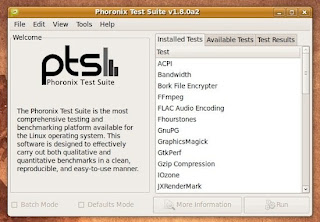
Phoronix Test Suite

Popular tech site Phoronix is quite famous for its comprehensive benchmarks and gadget reviews. Along with the support of many hardware and software vendors, the team developed an extensive testing tool called the Phoronix Test Suite. Licensed under GNU GPL v3, the cross-platform benchmarking tool comes with 130+ test profiles and 60+ test suites. The suite also supports PNG, JPG, GIF, Adobe SWF, and SVG Graph Rendering support.

With a nice-looking GTK2 GUI, the free tool provides a global database for result uploads and benchmark comparisons. That said, if you’re a little worried about your system getting messed up during the benchmarks (which is quite unlikely), you can download the Linux-based Live DVD/USB Testing distribution called PTS Desktop Live. The free distribution is a great way to test any computer for stability problems and for measuring performance in general.


LMbench

LMbench is a suite of simple, portable benchmarks to measure performance of UNIX systems. Though not as easy-to-use as the other tools on this list, LMbench is great for bandwidth benchmarks like memory copy, memory read, for latency benchmarks, and for processor clock rate calculation.


Geekbench

Though not FOSS, Geekbench does provide comprehensive benchmarking resources for Windows, Mac, Android, iOS, and Linux users alike. One of the prominent features of this tool is its support for multicore computers, that is, Geekbench measures the performance of all cores of the system (even works for a 12-core MacBook Pro!). Also compatible with 64-bit computers, Geekbench comes with a very easy-to-use feature called one-click benchmark that eliminates the need for tweaking with any complex settings. Though cross-platform, Geekbench is neither free nor open-source. You are needed to ‘pay and unlock’ the software for use.


Iozone

Iozone is an award-winning benchmarking tool for filesystems. The free and open-source tools generate and measure a variety of file operations on almost every major platform. Iozone checks the file I/O performance for the following operations: Read, write, re-read, re-write, read backwards, read strided, fread, fwrite, random read, pread, mmap, aio_read, aio_write. Written in C, Iozone is one of the best tools for benchmarking your operating system’s filesystem.


Bonnie++

Bonnie++ is a benchmarking suite designed for performing a number of simple tests of hard drive and file system performance. The free software tests database type access to a single file (or a set of files if you wish to test more than 1GB of storage), along with running tests for creation, reading, and deleting of small files that can simulate the usage of programs such as Squid, INN, or Maildir format email. Though not the best tool for new users, Bonnie++ does prove to be a great benchmarking tool for Linux.


Further reading:

If you’re interested in learning about Linux-based benchmarking in general, an interesting guide that walks you through all the little nitty-gritty of the process can be found HERE.


Written by: Abhishek, a regular TechSource contributor and a long-time FOSS advocate.

Keep Reading
in

Top Password Manager Apps for Android

- - 5 comments
As more and more people are moving their personal life into their pocket-sized mobile phones, data security is something that has started gaining importance. Earlier, people used to store their credit card data, bank account numbers, their passwords, and other personal details on a piece of paper, and perhaps many people still do that. But now, thanks to the growing tendency of human beings to treat their smartphones as their personal assistants, the pen and paper method has become obsolete and insecure.

These days, people store all their confidential data either on their computer or on their mobile devices; whichever feels more comfortable for them. When compared, storing data on mobile phones seems much more convenient as you can carry the device along with you without having to worry about forgetting your important key codes and combinations. So, if you’re an Android user looking for some great password management solutions that you can rely on, read on as we discuss some of the best applications in the genre.


aWallet Password Manager

aWallet is one of the most popular password management applications for Android. Once installed, the app lets you securely store passwords, credit card information, e-banking credentials, and web accounts. aWallet is quite simple to use. Just open the editor and punch in your credentials, let’s say your bank account number, and then once you’re done, save it with a little icon that helps you identify it. Once stored, the data can be encrypted using AES, Blowfish or 3DES ciphers thus letting you sleep peacefully at night.

Compared to the other apps on the list, aWallet is one of the most reliable ones. The reason for this is the fact that the app doesn't ask for any single permission from the user, not even permissions to use the Internet. This makes sure that the app itself won’t misbehave at any point in the future. What’s more, the app is completely free and without any ads. I don’t think you would have much trouble choosing the app you need.


Universal Password Manager

Universal Password Manager is a simple password management app for Android. Equipped with AES encryption, you can secure the app itself with a master password. You can store your usernames, passwords, and URLs in the app without having to give the app exclusive access to the Internet.


Keeper Password & Data Vault

With military-grade encryption, Keeper lets you store all your passwords on your mobile device. The app allows full text searching along with syncing support thus making it really convenient to use. All your data is backed up to the cloud with full protection. If, in case, your phone falls in the wrong hands, Keeper comes with a self-destruct trigger that erases all personal data in case of unauthorized access. The app can sync to other devices like Mac, PC, iPhone, and even to our beloved Linux. More like LastPass, Keeper is a great app to have if you prefer frequent cloud-based backup and a much more organized service.


Password Safe Pro

Password Safe Pro allows users to store their web logins, credit card numbers, and insurance documents safely. The app uses 128 and 256 bit AES encryption and allows you to wipe the data remotely using SMS. One of the most interesting features of the app is its ability to backup data to Dropbox or SD card, thus making it easier for people who frequently switch their phones.


mSecure

Equipped with 256-bit Blowfish encryption, mSecure is a cloud-based password management application for Android and iOS. The app has seventeen templates along with 250 personalized icons to keep the data as organized as possible. The app lets you backup your data and also provide a secure wipe facility just in case the phone falls in the wrong hands. mSecure also provides optional Dropbox backup and its Windows and Mac apps can be purchased at a small price. Rated 4.5 out of 5 stars, mSecure is freely available for download from the Play Store.


Keep Reading
in

How to Backup Linux Applications

- - 2 comments
We've already talked about the best backup software for Linux. These applications save you from losing all your data in case of some unforeseen incident. Moreover, if you’re using the latest version of Ubuntu, you’ll find a backup software (Deja Dup) already installed and ready to be used. So, one cannot stress more on the importance of backing up your data and staying on the safer side.

That said, not everything can be backed up so easily. In other words, backing up music, videos, documents, and even saved games can be quite easily achieved with the help of some popular tools. Or even you can copy all the data manually to some external hard drive, thus making the process even simpler. However, backing up applications, especially the ones on Linux, is not something many people go for.

Distro-hoppers like me just punch in a string of commands and all my favorite applications get installed without any problems. But for new users, who are formatting their hard drive for some reason or the other, and are tired of reinstalling everything again, there’s finally a simple solution to their woes. Here’s a small how-to article on backing up your favorite applications on Linux:


APTonCD

APTonCD, as the name suggests, is a free tool that lets you backup all your installed applications onto a CD or DVD. Once installed, the application lists all your packages and lets you burn them on a CD or DVD. You can, of course, choose which ones to burn and which not to burn.

To get started with it, simply type in or paste the following command in your terminal (Ctrl + Alt + T) if you’re using Ubuntu:

sudo apt-get install aptoncd

If you’re on any other distribution, feel free to download the tool from their website.

Once installed, open it by searching for APTonCD in the launcher (Super key). The application is very easy to use and you can backup all your apps in 3 simple steps.

Step 1: From the Welcome screen, hit the Create button.


Step 2: Choose the packages you want to backup. If there are more packages you want to add, click on the Add button to include more deb files. Finally, once you’re done, hit the Burn button.


Step 3: Select the medium (CD or DVD) and the destination of the image file and then hit Apply. Once you've created your backup CD, open up APTonCD on that computer and just hit the Restore button from the Welcome screen (refer to Step 1).


A simple command list

If APTonCD isn't your cup of tea then a simple list of commands will help you backup almost all your important applications. Firstly, make a list of all the important applications that you use on a daily basis. If you can’t find the package names, simply hit the following command:

sudo dpkg --list

Then once you've made a list, write out the whole command like this on a text file:

sudo apt-get install vlc python firefox …..

Then, save that text file to your Dropbox or Ubuntu One folder and relax. Also, if you use software from repositories, write down the command for adding the repos to the same text file. For example, you can write:

sudo add-apt-repository ppa:cooperjona/nitrotasks && sudo apt-get update && sudo apt-get install nitrotasks

Then finally, after formatting your hard drive and reinstalling Ubuntu, just paste in these commands into your terminal and enjoy.


Written by: Abhishek, a regular TechSource contributor and a long-time FOSS advocate.

Keep Reading
in

Running Windows with Linux: Virtualization or Dual Boot?

- - 5 comments
Whether you’re a seasoned Linux user or a fledgling penguin, we all have to admit that there are some things you can’t do without Windows. Redmond’s monopoly and software consumerism have made Windows one of the most indispensable relics in the world of technology. Be it games, office tools, animation software, or drawing suites, Microsoft’s dominating platform offer it all. This dominance has, in turn, restricted the growth of Linux and even Mac OS, thus forcing people from using Windows for one job or the other.

If you too are a Linux user in need of Windows to get some small jobs done, there’s absolutely no need for you to switch over to the dark side. You can, instead, install Windows side-by-side and switch to it whenever needed. Or, if that doesn't suit your needs, you can virtualize Windows right from your Linux desktop and get your job done without making any drastic changes to your system. Now, the question for many users is, which path should he or she choose? Virtualization or Dual boot? To solve that dilemma, we've compiled a list of pros and cons you’ll encounter while switching to either of those options.

Dual boot or Virtualize -- A simple test to choose the best

First of all, before you pick up that rusting copy of Windows, it’s better to know the purpose for using Windows. What do you need it for? -For games, work, or simply to get some small jobs done? A simple way to determine whether to dual boot or to virtualize is to ask yourself this question -- is what I do on Windows really resource-intensive? That is, does it put too much load on the system? If the answer is yes, then by all means go for dual boot. If the answer is no, you’re better off running Windows on a virtual machine.


Dual Booting -- Some tips


To dual boot is to run both Windows and Linux side by side. It is not exactly rocket science and you don’t need any special skills to boot both the operating systems side by side. More user-friendly operating systems like Ubuntu automatically detect the other operating systems that are installed and ask you whether you want to install both of them side by side.

To ensure that things go as smoothly as possible here are some basic tips you need to remember before dual booting:

1. Always ensure that there’s enough hard disk space
2. If you’re dual booting Windows and Linux, always install Windows first then go for Linux. This installs the Linux bootloader (GRUB2) on top of Windows thus letting you switch easily between either of the systems.

Dual booting -- Pros and Cons

Pros:
1. Both the operating systems coexist in peace. That is, data or resources from one operating system never interfere with the other.
2. Switching between either of the operating systems is as easy as rebooting your computer, a process which almost all Windows users is quite familiar with already. ;-)
3. Dual booting can be done on any computer, even if it has a really low-end processor and limited RAM. All you need is a good amount of hard disk space.

Cons:
1. When you install Windows, it takes much more space than Linux. Also dividing space between the two operating systems limits the disk space a lot.
2. Although you can access Windows data from Linux without trouble, you can’t access Linux files from Windows easily.
3. Sometimes, if we make some changes to Linux that affects the bootloader, Windows might refuse to boot. Errors like ‘NTLDR missing’ are quite frequent in these cases.


Virtualization -- Some tips

Virtualization is, in simple terms, one operating system running on top of another. We've already talked at great length about the process. In our earlier article, we've covered the best virtualization software for Linux. Also, for Ubuntu users, we've compiled a list of the best virtualization tools compatible with Ubuntu.

Virtualization -- Pros and Cons

Pros:
1. While virtualizing, unlike dual booting, you don’t end up wasting valuable disk space.
2. If you’re on the more adventurous side of life, feel free to tinker with the virtual OS as any changes you make won’t screw things up as bad as you do while dual booting.

Cons:
1. While you can dual boot safely on a Pentium-II machine, virtualization does require you to have a computer with a fast processor along with an ample amount of RAM.
2. As easy as virtualization is, some new users might not be that comfortable with the idea of running one OS on top of another. There are many users who find virtualization a tad uncomfortable.
3. You cannot do everything on a virtualized machine. A virtual machine is good enough for MS Office and other less resource-intensive tasks; however, if you want to play video games or edit movies, there’s no substitute for dual booting.


There it is, we've given you a tour of both sides of the game. It’s up to you to choose the path that suits you best. ;-)


Written by: Abhishek, a regular TechSource contributor and a long-time FOSS advocate.

Keep Reading
in

Best Car Racing Games for Android

- - No comments
Like the rushing thrill of driving at full speed? Yes, everyone does. Some pay their cash to ride on a roller coaster and some drive a Ferrari. But not everyone can drive full-speed without getting arrested and not everyone can experience the thrill of speed. That is where video games come in. These ingenious programs help us evade our quotidian and escape into a completely different world. Though nothing beats the thrill of real speed, the emulated experience is something you make do with unless, of course, you’re serious about making a career in F1 racing.

Already, there are thousands of games that adorn the somewhat clustered car racing genre in video games. And day-by-day, the numbers keep piling. Bringing the same excitement to your little smartphone or tablet computer come the latest collection of car racing games for Android.


Need For Speed Shift

EA’s classic comes to Android with this graphically polished title. The game lets you drive over 20 cars including BMW M3 and Lamborghini on 18 realistic tracks. You can either play the career mode or just take a test drive using the Quick Race mode. Though the gameplay is not as enticing as other games on this list, it still offers some of the best and the most realistic graphics you can have on Android.


Asphalt 6: Adrenaline

With 42 cars that you can flaunt in your own 3D garage, Asphalt 6 brings the best racing experience you can have on Android. The game features 11 different leagues and 55 different events, which, though enough for any adrenaline junkie, are incomplete without the amazing multi-player experience that the game provides. Quite simply, this is one of the absolute best titles on the list.


Real Racing 2

Providing absolutely stunning graphics comes Real Racing 2 from EA. Sticking true to its title, the game provides realistic racing using 30 officially licensed cars that you can try out on a huge 16-car grid. The career mode offers 10 hours of racing in 15 different locations making the game worth your time. Rated 3.5 out of 5 stars, Real Racing 2 is freely available for download from the Google Play Store.


Race of Champions

Allowing you to race in London, Dusseldorf, and Barcelona comes Race of Champions, a fun free game that makes racing even more exciting. With realistic graphics and an impressive set of gaming modes, Race of Champions never fails to impress. You can either try Championship mode or flaunt your skills on online charts using the duel mode. The time challenge mode on the other hand lets you race against the clock using a ghost car. Worth a try if you’re into some serious racing fun.


Drag Racing

Putting a twist to normal racing comes drag racing, an innovative little game that lets you drive around 50 cars and race them either against NPCs or against some fierce online gamers. The game is simple, you start with a car, you tune it, and then it is up to you to beat all the opponents and drag your wheels away to glory. If your car is expensive, the game gets even harder to beat both offline and online. For upgrades, you can add nitro and other stuff to make your spins more accurate. Furthermore, the game relies on cash you earn during matches. If, however, you’re a little short on it, then you can earn some quick bucks in the Drivers Battle. Overall, Drag Racing is a fun game to try out if you’re a little bored with the traditional racing games.


Tilt Racing

Providing another unique racing experience comes Tilt Racing, a game wherein you have to ‘tilt’ your phone to control the vehicle. The game provides a top-down view of the tracks, allowing you to race on up to 10 tracks and with 6 different cars. Much like the aforementioned Drag Racing, Tilt Racing features a unique racing experience that makes it stand out amongst other games in the genre. You can either control your car with the accelerometer or you can use the touch screen. Overall, the game seems quite nice if you’re looking for something fresh in this genre.


Written by: Abhishek, a regular TechSource contributor and a long-time FOSS advocate.

Keep Reading
in

Dropbox vs. Google Drive vs. Microsoft SkyDrive

- -
With the recent launch of Google’s much-awaited cloud service, the online storage wars have finally begun. Dropbox, which is the frontrunner in cloud storage and online backup services, has not yet lost its top spot despite the fact that biggies like Apple, Microsoft, and Google are battling against it. Microsoft, which is banking heavily on SkyDrive, is leaving no stones unturned in ensuring that its cloud endeavor doesn't go unnoticed. Google however, is making sure that its ambitious Google Drive project, which people had been waiting for a long time, gets the attention it deserves.

These cloud wars have escalated to such heights that even the always belligerent Apple has started rejecting applications that use Dropbox’s SDK. Google Drive, much to everyone’s surprise, is playing it nice and cool and presenting itself in the form of an ‘upgrade’ to Google Docs rather than a separate service. Only time will tell whether Microsoft SkyDrive or Google Drive will achieve the popularity Dropbox achieved; however, if you are having trouble choosing from the list, all you have to do is read this article. We’ll be comparing the three services head-to-head and will ensure that you’ll land up with the one that suits your need.


Backup

For backup, you can’t really compare these three. All of them do the job really well. Using the native clients, you can save all your important files to the cloud by simply dragging and dropping. File upload is super quick and easy. Other than providing simple backup, they also offer revision control that lets you jump back to the file’s earlier state.

Out of these three, I’d have to say the winner would be Dropbox. Not only does Dropbox provide its client on every platform possible, it also makes it dead simple to view revisions of files. This, however, is not as easy to do in Google Drive or Microsoft SkyDrive.

Winner: Dropbox


Desktop Clients

Microsoft SkyDrive and Google Drive offers desktop clients for Mac and Windows. Dropbox on the other hand offers applications for Windows, Mac, and Linux. Of course, GDrive has promised a Linux client soon, but Dropbox has been around for a long time. Also, Dropbox’s integration with Ubuntu’s indicator menu and Nautilus is something that makes it one of the best proprietary apps on Linux. Dropbox is the clear winner here.

Winner: Dropbox


Free Storage Space

As far as free storage space is concerned, Microsoft’s SkyDrive wins the race. Earlier it was offering a whopping 25 GB worth of free space to its users, but now, that seems to have gone down to 7 GB, which too, to be honest, is not a bad deal. Dropbox offers 2 GB to start with, and Google Drive starts with 5 GB. You can, of course, increase your Dropbox space by inviting other people, but that’s still not going to outmatch Microsoft’s delicious offering.

Winner: Microsoft SkyDrive


Paid Storage Space

Microsoft SkyDrive: Starts at $10/year for 20 GB.
Dropbox: Starts at $99/year for 50 GB
Google Drive: Starts at $30/year for 25 GB.

Clearly, Microsoft SkyDrive is the cheapest in the list making it a winner. Dropbox, however, quickly needs to offer more flexible plans for its users, something to compete with Microsoft and Google.

Winner: Microsoft SkyDrive


User Interface

As far as the user interfaces are concerned, I’d have to say, Google Drive is still quite messy. The lack of a file-browser-like UI is simply a turn-off. Dropbox on the other hand presents a neat and simple UI, along with native integration file-browser integration. Coming to Microsoft SkyDrive, it too has a great UI, something that many minimalists will like.

Winner: Tie between Microsoft SkyDrive and Dropbox


Uniqueness/Value

When it comes to uniqueness or rather the most valuable product of the lot, I’d have to hand it to Google Drive. Despite the tepid response it got from the crowd, it’s integration with other Google services simply cannot be overlooked. While testing out, I noticed that Google Drive fits perfectly in my workflow. I go to drive.google.com, create a new document, and without even closing it I can mail it as an attachment to someone. Also, the ability to integrate different apps into Google Drive is a huge plus.

Dropbox on the other hand does offer other unique perks like extra storage space for invites, LAN sync and more, but it doesn't quite match Google Drive’s offering.

Winner: Google Drive


Our verdict

Google Drive, though nice, is kind of messy. It’s simply neither as good nor as convenient as Dropbox. SkyDrive is good if you’re into Microsoft products, otherwise these two services are not tempting enough to make you quit Dropbox.

Overall Winner: Dropbox

Keep Reading
in

How to Access Linux Partitions from Windows

- - 1 comment
Dual booting is one of the best ways that Linux-curious folks can get their hands dirty. First install Windows, next put Linux, and then switch between the two whenever you want; life couldn't be more perfect. The ease with which you could cycle between the two operating systems have taken Linux, especially Mint and Ubuntu, to the masses, a group which never would have imagined touching the penguinian operating system.

Once set up, you can easily access all your Windows files from your Linux distribution and mess with them any way you want. However, if, from Windows, you wanted to access the files you have on Linux, there is no straightforward way of doing it. That’s why some developers have come up with a useful set of tools that help you overcome that limitation and access your stuff on Linux in its full glory. So, without much ado, here’s how to access Linux partitions from Windows:


Ex2Read

Similar to Explorer, Ex2Read lets you access your files on Linux whether they are on an ext2, ext3 or ext4 partition. Once installed, the free tool allows you to view and copy folders and files. Moreover, you can recursively copy whole directories along with support for LRU block cache for faster concurrent access. Licensed under GPL, Ex2Read also supports external USB disks, which means you don’t have to worry about those portable hard drives not being recognized by Windows. That said, there’s limited support for large files on Ext4, which, in my opinion, is not a big flaw.


DiskInternals Linux Reader

With support for ext2, ext3, ext4, HFS, and ReiserFS file systems, DiskInternals Linux Reader is a free tool for accessing Linux partitions on Windows. The software promises to provide safe access to Linux partitions from Windows, which avoids any accidental modifications to Linux that might stop it from working. Though DiskInternals comes with support for more file systems when compared to the aforementioned Ex2Read, it does, however, lack the ability to write to file systems. The best use of DiskInternals would be for new users, or on a shared computer where there might be a fear of other users messing with the files on Linux.


An Alternative Workaround (for those who don’t want to use any external tools or software)

That said, if you want to avoid using any external tools, here’s how I dual-boot my computer: I've given more space to Windows (approx 70%) on my computer. On the remaining 30% I've installed Linux. I keep all my music files, videos, and movies on my Windows partition and create a bookmark in Nautilus linking to those folders. The advantage of using this method is that it allows you to access all your important files from both the operating systems without using any external tools. So, let’s say I boot from Linux to Windows, now, I can easily listen to all my music and watch all my movies without having to look for them everywhere.


Written by: Abhishek, a regular TechSource contributor and a long-time FOSS advocate.

Keep Reading
in

Top File Compression Tools for Linux

- - 1 comment
File compression is still the best way to send a huge bunch of photos to your dearest friend. It is one of the most important operations on almost every operating system, and is, therefore, inundated with a barrage of apps concerning it. On Windows too, file compression comes built-in, and so does on Linux. That said, the default compression method isn't always the best one, and even if it is, there are people who are looking to trying out new tools for the same operation.

For file compression on Linux, as on Windows and Mac, there is no dearth of applications, both closed source and open source, which you can try for free. So, whether you're looking to pack hundreds of photos in a nice zipped file and send it to your friend, or you’re trying to save some valuable space on your disk, there are a lot of nice compression tools you can choose from on Linux. Here’s a list of all the best ones in that genre:


Bzip2

Released in 1997, bzip2 is one of the most common file compression tools for Linux. Though not as fast as other titles on the list, the open-source tool is known for its errorless compression and patent-free nature. Furthermore, thanks to its recovery capabilities, bzip2 can also decompress files that are slightly damaged. One great thing about bzip2 is that since it uses POSIX threads it parallelizes the compression process, a thing that makes it work well with many multi-core processors. Since it’s a command line tool, and a very old one, it’s highly unlikely that you won’t find it pre-installed on your favorite Linux distribution.


Ark

Part of the KDE suite, Ark is a popular archiving utility used for zipping up tar, gzip, bzip2, rar and zip files. Once installed, you can browse, create, extract, and modify archives. The latest stable release is 2.17 and is licensed under GPL v2. Neatly integrated with Dolphin, KDE’s default file manager, Ark proves to be a convenient and simple file archiver for Linux.


7-Zip

7-zip is an open-source file compression utility that’s quite popular on Windows. Also available for Linux, the file archiver supports formats like 7z, XZ, Bzip2, gzip, tar, zip, and more. For unpacking files, even more formats are supported including the ones like arj, cab, dmg, ntfs, rar, rpm, and more. Licensed under GPL, 7-Zip comes with support for strong AES-256 encryption in 7Z and zip formats. Their 7Z format offers the highest compression ratio, and is thus used by many users to compress big files.


PeaZip

PeaZip is a free, cross-platform file archiver that presents a unified GUI for other compression tools like 7-zip, FreeArc, PAQ, and more. Once installed, you can create 7Z, ARC, BZ2, GZ, ZIP, RAR and many other types of archive. Also, PeaZip supports extraction of over 130 archive types. Furthermore, the free tool can extract, create, and convert multiple archives at once, create self-extracting archives, split or join files, and do much more. For the security-conscious, it includes support for two-factor authentication, encrypted password manager, secure deletion and many other features.


RAR

If you’re moving from Windows to Linux, you might, more often than not, come across files packed in RAR packages. Now, WinRAR, the tool with which you create RAR files is not available for Linux, as yet, and there’s a dearth of any promising alternatives for the proprietary tool. RAR is a software that fills in that need, and makes unzipping and zipping .rar files a breeze. Though free to try, RAR is a shareware, and you’d need to register it after 40 days of use. That fallacy apart, the tool is actually quite good because not only does it work well with RAR files, it also serves as a good archiver for zip files.


Written by: Abhishek, a regular TechSource contributor and a long-time FOSS advocate.

Keep Reading
in

Best GPS Apps for Android

- - 2 comments
Global Positioning System or GPS, has, little by little, become an integral part of our lives. Whether it be finding our way home or checking out the best restaurants in a foreign country, the satellite-based navigation system has been making our lives better since 2007. Not only that, GPS has also made military operations and strategies much more advanced.

Despite the fact that many technologically-challenged people go through a bit of a struggle while using GPS, there are, in fact, many applications that have made that process a whole lot easier. In today’s article, we’ll be touching upon some of the best GPS-based apps that are out there for Android. These apps will not only help you use GPS, but will also let you get the most out of your phone and discover new places.


Waze

Waze is a social GPS application that helps you navigate to your destination and also connects you to other drivers. Once installed, the free app lets you lookup real time traffic information and road reports. Furthermore, you get notifications about upcoming police traps, speed cams, and occasional road hazards. The app is well designed, and the GPS integration is good enough to be used as your main navigation tool. In fact, the app also features voice-guided, turn-by-turn directions, so that you won’t get lost in the traffic.

One of the most important, and slightly controversial features of the app is the ability to create or join local driving groups and the ability to carpool with them. Some users might find this helpful, and some of them might find it a bit privacy-invasive. However, overall, the app is great for anyone who travels a lot and is looking to improve his or her overall transportation experience, so it's like one of those handy Android travel apps.


GPS Essentials

Known as the Swiss-army knife of GPS navigation, GPS Essentials is a free tool that lets you navigate, manage waypoints, and much more. The app lets you view data like altitude, declination, climb, sunrise, moon phase and more. Moreover, you can use it as a compass to show the earth’s magnetic field and also as a marine orientation device. The app is composed of widgets, all of which you can drag and drop to your custom ‘dashboard’. GPS Essentials can also be handy in long journeys, wherein you could send waypoints to your lost friends via email or share with them using Dropbox (KML or GPX format).


Google Maps

Google Maps is perhaps the best GPS application out there for Android. Simple, feature-loaded, and stable, the Google-made app turns your phone into a full-fledged GPS device. From detailed maps with 3D buildings to real photos of streets, Google Maps is the perfect app for your every navigation needs. It also comes with a voice-guided turn-by-turn navigation system, which, complimented by the live traffic information, takes you to your destination without having to stop by and ask random strangers for directions.


Sygic

Sygic is a voice-guided navigation app that displays 3D cities and landscape along with spoken street names. With Dynamic Lane Guidance and Signposts, the app comes with features that most of the other navigation apps don’t offer. You can search for any street, city, or suburb along with looking for maps of most of the major countries that are loaded in the app. Other features include stopwatch, Facebook and Twitter integration, pedestrian navigation, and much more.


Though free to download from the Google Play Store, you have to pay for the app after the 7-day trial period. So, if you are looking for a simple GPS-enhancing application, we will not recommend Sygic; however, if you are in need of a full-fledged, dedicated GPS navigator, this is the perfect choice for you. Sygic has been rated 4 out of 5 stars in the marketplace and has gotten quite a lot of nice reviews.

Keep Reading
in

Ubuntu 12.04: To Upgrade or Not to Upgrade

- - 5 comments
Ubuntu’s latest release called Precise Pangolin has managed to please its many admirers and silence the naysayers. Unity, the most contentious part of Ubuntu so far has turned out to be a dark horse in Canonical’s race for desktop domination. With new features like the HUD, video lens and more, Ubuntu 12.04 has even had the BBC waxing eloquent about its charm. That said, not everyone is happy with the latest release. There are, as always, some criticisms regarding the lack of a new icon theme and the absence of any major game-changing feature. Of course, the overall outlook towards Ubuntu 12.04 'Precise Pangolin' is positive and there is absolutely no doubt that this is the best release by Canonical so far.

As with every new release, many users are kind of on the fence about upgrading their operating system to the latest version. Fears, doubts, and stability affinity are some roadblocks that a new Linux user faces when he or she hears about the word upgrade. If you too are undecided whether to upgrade or not to, here’s a list of the reasons which will help you pick a side.


Reasons Why You Should Upgrade to Ubuntu 12.04

1. You get the latest of all apps: Yes, the latest Firefox, Nautilus, and Thunderbird are enough reasons to make you choose the Pangolin. With the latest kernel, you have faster boot times, better driver support and more. Also, Ubuntu’s Software Center has been upgraded to the latest version making it much faster than its earlier version.

2. Improved Unity: Unity in 11.10 was, to an extent, a half-baked desktop experience. Applications were not integrated properly, nor was the launcher completely done. With Ubuntu 12.04, you’ll find most of the default applications support quick lists, thus making the desktop much more usable.

3. The Video Lens: Whether you want to explore your huge movie collection or want to discover some cool online videos, the Video Lens on the Unity desktop makes every videophile happy. You can easily browse through or search videos from your own videos collection (files from your Videos folder) and open them up using the default media player.

4. Improved Privacy: For many users, the Dash is more of an embarrassing history reminder than an intelligent desktop search engine. For those who worry about their privacy a lot, the settings let you delete your entire track record or history from a limited time frame.

5. HUD: Replacing the traditional menubar comes HUD, an intelligent and adaptive tool that allows you to perform important application-related tasks without clicking the mouse. Simply press the Alt key and key in the command you want.

6. A Great Set of Wallpapers: Admit it, who doesn't love to dress up their computer? If the aforementioned features don’t interest you much, then at least upgrade for the amazing set of community wallpapers that come with Precise. And yeah, change the wallpaper and you’ll see the login screen adapt it as its skin instantly.

7. Improved Multi-Monitor Support: Work with 2 or more monitors like a boss with Ubuntu’s latest offering.


Reasons Why You Shouldn’t Upgrade to Ubuntu 12.04

1. You hate Unity: If you’re using the pre-Unity Ubuntu, then chances are that the new incarnation of the Canonical marvel doesn't appeal to you much. No matter how hard you tried, you couldn't really manage to like the whole Unity thing. In that case, it’s okay; it’s better to stay with your current version. Gnome 2 isn't that bad after all.

2. Your upgrade experience hasn't been good so far: Admit it, the upgrade experience isn't the smoothest of all. There are some small issues here and there usually; however, there are rare cases when the upgrade messes things up real bad. If your computer has been a victim of such circumstances a lot of times, then it’s better to stay with the earlier version rather than upgrade. Also, if you’re on a computer that demands a lot of uptime then it’s better to stick with the older version.

3. You don’t need awesome features: Okay, no matter how much you hate Unity, Ubuntu 12.04 is something that will make you change your mind. It’s stable, fast, and comes with a lot of amazing features that neither Linux Mint nor any other distro have at this moment. So, if you’re on the fence about upgrading, we’d say by all means go to ubuntu.com right now and upgrade!


Written by: Abhishek, a regular TechSource contributor and a long-time FOSS advocate.

Keep Reading
in

Top Google Earth Alternatives

- - 2 comments
Google Earth is one of the most innovative software the big G has developed so far. The free tool lets you browse the whole globe without the need for any fancy equipment. Roam freely around the blue planet, explore new places, and augment your geographical knowledge by simply sitting in front of the computer. Google Earth’s magical navigation lets you ‘fly’ to any place that comes to your mind.

Whether it be the architectural marvels of Havana or the ruins of Babylon, Google Earth lets you browse almost any marvel on the planet. Furthermore, the tool also lets you see 3D buildings, imagery, and terrain. You can also find cities, places, and local businesses, thus making Google Earth a rather useful tool for frequent travelers. Other interesting features of the application include the ability to visit art museums, baseball stadiums, world skyscrapers, and soccer stadiums.

That said, despite all its nice features and amazing capabilities, Google Earth comes with its fair share of flaws. Despite being made available on almost all popular platforms, including on our beloved Linux, it has been widely criticized by the Free Software Foundation (FSF). Written in Qt, the Linux version of Google Earth uses the controversial Digital Rights Management (DRM) thus turning the FOSS community against it. In fact, an open-source version of Google Earth has been made a high priority and is included in the list of High Priority Free Software Projects.

Even though the FOSS version of Google Earth is not available yet, there are certainly some great alternatives you can try natively on your Linux box. Despite the fact that these tools don’t quite offer the same amount of features as Google Earth, they do, however, let you browse the earth and come with all the essential features the proprietary tool offers.


NASA World Wind

Developed by the revered NASA organization, World Wind lets you zoom from satellite altitude to any place on earth. Using Landsat satellite imagery and shuttle radar topography mission data, you can view 3D images of the Earth and increase your geographic knowledge. Written in Java, World Wind is cross-platform, open source, and is developed on open standards. You can browse the globe easily either by using your mouse or by taking advantage of the numerous keyboard shortcuts it comes with.

NASA World Wind requires a 3D video card with the latest drivers, so NVIDIA and ATI cards are generally preferred.


Marble

Marble is a virtual globe and a World Atlas that you can use to learn more about the planet Earth. Whether you want to increase your geography knowledge or check out new destinations for traveling, Marble lets you zoom into the remotest corners of the earth. Part of the KDE Education project, the open-source tool not only lets you look up places and roads, it also leads you to links of Wikipedia articles of that particular location.

Marble offers classroom-style topographic maps, a satellite view, street map, earth at night, and temperature and precipitation maps. All maps come with a custom map key that makes it easier for educators to use Marble in classrooms. Marble is part of the KDE suite of application, and looks even more beautiful if you have a K desktop environment installed. In fact, KDE users can take advantage of the marble widget that they can drop onto their desktop.


One great thing about Marble, as compared to Google Earth and NASA World Wind, is that it runs decently even without any hardware acceleration. Moreover, the ability to take advantage of third-party plugins make Marble much more interactive and fun to use. Plugin sources include OpenStreetmap, Wikipedia, KML, and GPX. Quick to startup and easy on the system, Marble is perhaps the best alternative to Google Earth you can have on any platform and not just on Linux. Surely worth a try even if you’re not a fan of KDE-based applications.

Keep Reading
in

How to Create Custom Linux Live CD/USB

- - No comments
Tired of Shuttleworth's bold endeavors? Find Fedora, Mint, and other Ubuntu alternatives relatively insipid? If yes, then it’s time you put in a little time to create your own custom spin that looks and works as you want it to. Oh, but before you imagine yourself typing in cryptic commands in a dark corner of your room, stop worrying. Creating a custom Linux live CD is not as hard as it sounds. Thanks to an amazing set of tools, you can create your own custom Linux live CD or USB in about an hour.

So, if you’re itching to showcase your Linuxian invention to the world, here’s a small how-to article on that:


Ubuntu Customization Kit

Ubuntu users can benefit from a cool customization tool called Ubuntu Customization Kit, which, once installed, lets users create custom Ubuntu Live CDs according to their needs. The great thing about UCK is that it’s very easy to use, and anyone with little computing experience can create his or her own distribution without any major hassles. Moreover, since the application comes with a nicely designed GUI, you can swiftly move through all the complex tasks. That said, the app doesn't just cater to the needs of new users, it also allows experienced users to customize their distro with some cool scripts along with the possibility to customize root filesystem.

To get started, simply install UCK by typing in or pasting the following command in the terminal (Ctrl + Alt + T):

sudo apt-get install uck

Open the launcher (Super key) and type ‘uck’ without the quotes. Then once the application shows up, follow the instructions and create the distro of your dreams.

Also, if you get stuck, How-To Geek has a detailed guide about using UCK.


Remastersys

If you’re known among friends as an expert tweaker, then Remastersys will help you share your expertise with your friends without the hassles of cryptic coding. The application, once installed, will help you backup your whole system on to a live CD or USB, which can then be installed as a distro on a separate computer. Since Remastersys blacklists NVIDIA and AMD proprietary drivers, installing your custom distro on a different computer won’t be such a big issue. The maximum size of the ISO is 4GB, which, in our opinion, is more than enough for any Linux user to showcase their distro-making talent.


Fedora Revisor

For Fedora fanboys and fangirls, Revisor is a popular tool that helps them create customs spins of their favorite distribution. Users can customize the packages and personalize the distro any way they want. Then, once you’re done customizing your respin, you can load it onto a USB stick or a DVD and share it with friends. Furthermore, if your respin appeals to a certain user group, you can submit it to Fedora Spins project page and watch it grow. In fact, some of the spins like Electronic-Lab were created specially for people who need all the packages related to their work.

To install Revisor, simply enter the following commands in your terminal:

sudo yum install revisor


SUSE Studio

SUSE Studio is quite similar to the aforementioned Fedora Spins project; however, SUSE Studio is much more easy to use as it lets users create their Live CDs/USBs online. Once you’re done customizing, you can export your custom operating system as a virtual machine, Live USB disk, CD/DVD image, hard disk image and more. Moreover, you can build and deploy directly to cloud services such as Amazon EC2. Finally, once you’re done with your masterpiece, simply upload it to the SUSE Studio gallery where new users can try out your work.


Written by: Abhishek, a regular TechSource contributor and a long-time FOSS advocate.

Keep Reading
in

5 Handy Travel Apps for Android

- - 1 comment
The way we travel has evolved a lot over the years. In the early days, people used to walk around with giant folded maps, asking for directions to random strangers. Not that anything is wrong with that, it was just that those methods weren't as great as the ones we have now. For example, not only is using GPS devices more convenient than carrying maps and guides, it’s also much more time saving.

These days, all the things you need for your journey are packed neatly into your tiny smartphone, thus fitting a whole bag full of accessories right in your pocket. Furthermore, there are a variety of applications that help us take care of the smallest of hassles we encounter in our voyage. Today, we’ll take a look at five handy apps that makes an Android smartphone or tablet a perfect companion for travelers.


TripAdvisor

TripAdvisor is a free app for Android that allows you to browse through over 50 million reviews and opinions by travelers about the best places to eat, sleep, and visit. The intuitive app helps you find hotels, restaurants, attractions, and more with tight map integration. Moreover, you can also find out more about places by browsing through thousands of photos uploaded by other TripAdvisor users. Rated 4.5 out of 5 stars, the app is freely available for download from the Play Store.


Hipmunk

Co-founded by Reddit co-creator Steve Huffman in 2010, Hipmunk helps you find the best hotels and flights for your trip. Competing directly with Google’s flight search service, the free app shows you the cheapest and the most hassle-free flight. So, for example, you’re flying from New York to Seattle, not only will Hipmunk find you the cheapest deal, it will also take into consideration factors like travel time, number of stops, and more, so that your journey is as comfortable as possible.

Furthermore when it comes to finding hotels, Hipmunk shows you a nice map of all the best ones around your area. Above each hotel’s marker, you’ll find the pricing, rating, and a small picture of it. If you’re more meticulous about the hotels you choose, you could also browse pictures of the rooms right from the app. Overall, Hipmunk is undoubtedly the best and the most useful travel app in this list.


KAYAK

KAYAK lets you compare hotels, rental cars, and flights right from your Android device. Once installed, the free app lets you track your flight status, look up baggage fees, manage itinerary, access airline numbers and more. Rated 4.3 out of 5 stars, KAYAK is freely available for download from the Google Play Store.


Hotel Tonight

Hotel Tonight will help you find great deals on hotels while planning your next big trip. Limited to U.S cities only, this free app can save you up to 70% on hotel bookings. Hotel Tonight is especially made for frequent travelers who are forced to book hotels at the last minute. Once installed, the app will make sure that you’re not stranded on the airport after your delayed flight.


Expedia Hotels

Expedia Hotels is a free app that helps you book from over 130,000 hotel rooms without picking up the phone. Optimized for tablets, the app shows all available hotels in your vicinity on a nice map and then lets you book from any of them. You can then narrow down to the ones you need by using filters based on price, distance, hotel name, and traveler rating. If you’re on the fence about the booking, you can browse through reviews of millions of other Expedia users, thus making the process quite transparent. Finally, when you’re ready to book, you can securely reserve your room without having to worry about security issues. Rated 4 out of 5 stars, Expedia Hotels is freely available for download from the Play Store.


Written by: Abhishek, a regular TechSource contributor and a long-time FOSS advocate.

Keep Reading