in

Top Business Intelligence Software for Linux

- - 1 comment
Business intelligence tools comprise the important software that helps in the strategic planning process of a corporation. Using them, you can gather, store, access, and analyze corporate data. The data collected by corporations are huge and to keep track of them, you need business intelligence software. You can use these tools in customer profiling, customer support, market research, product profitability, market segmentation, statistical analysis, and more.

On Linux too, you’ll find a wide variety of such business intelligence software that will help you and your business manage such arduous tasks. If you’re looking for the best business intelligence software, you should find this list useful:


SpagoBI

Founded by the SpagoWorld initiative, Spago is a completely open-source business intelligence tool. SpagoBI is one of its kind as it is entirely open-source unlike other tools wherein some proprietary components are involved. SpagoBI is usually a server that lets you work on more than 16 analytical areas and with more than 20 engines. It comes with tools like Geo, QbE, Dossier, KPIs, Interactive Dashboards, Real-time BI and more. Another great thing about SpagoBI is that it requires no initial setup and configuration. Moreover, there’s also cloud integration and mobile access.


JasperReports

JasperReports is an open-source reporting tool that is based on Java. This cross-platform application can write to printers, PDF, HTML, Excel, ODT, CSV, or XML files. Originally licensed as copyleft and then moved to LGPL, JasperReports was originally called Panscopic. JasperReports integrates with a variety of applications including DynamicReports, WebReportBuilder, Jaspertags, and others.


BIRT Project

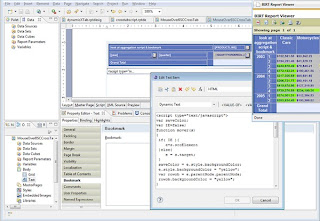
BIRT is an open-source tool that provides reporting and business intelligence capabilities for rich clients and web applications. A project by Eclipse foundation, BIRT is written in Java and works across all platforms. BIRT comes with two main components: a report designer that is based on Eclipse, and a runtime component that you can add to your app server. There is also a charting engine that lets you add charts to your own application. BIRT allows you to add reports like lists of data, charts, crosstabs, letters and documents, and also compound reports.


RapidMiner

RapidMiner is an open-source tool for machine learning, data mining, text mining, predictive analytics, and business analytics. Written in Java, it is basically an artificial intelligence tool that can also be used as business intelligence software.


Pentaho

Founded in 2004, Pentaho is a suite of open-source Business Intelligence tools that provide data integration, OLAP services, reporting, dashboarding, data mining and ETL capabilities. With two editions, community edition and enterprise edition, Pentaho also supports a variety of plugins that extend its capabilities. For consumers, Pentaho offers 4 different plans: open-source, basic, professional, and enterprise that come at various prices.


KNIME

KNIME, the Konstanz Information Miner, is an open source data analytics, reporting and integration platform. Using its modular data-pipelining concept, KNIME integrates various components for machine learning and data mining. Used in pharmaceutical research and in CRM, KNIME serves as an excellent cross-platform business intelligence tool.

Written in Java, KNIME allows users to visually create data flows (or pipelines), selectively execute selected analysis steps, and then inspect the results. KNIME is licensed under GPLv3 and works perfectly across Windows, Mac OS X, and Linux.

KNIME can also be used by teams with the help of KNIME Team Space suite. This lets you share all your work with your team members. The data analysis files are kept together at one central place so that all team members can work on it collaboratively.


Palo (OLAP database)

Palo is a multidimensional online analytical processing (MOLAP) server and is used as a business intelligence tool for controlling and budgeting. In this open-source software, spreadsheets serve as the user-interface for budgeting. Used for handling complex data models for business management and statistics, Palo gives rapid access to all data as it stores it in memory during runtime. If you use Excel, there’s also an open-source Palo plugin for it.


Written by: Abhishek, a regular TechSource contributor and a long-time FOSS advocate.


Keep Reading
in

How to Backup SMS (Text) Messages on Android

- - No comments
With the advent of alternative messaging apps like Viber, WhatsApp, and GroupMe, SMS is slowly losing the dominance it once had. Many Android users often use these feature-rich messaging apps instead of the standard SMS app for many reasons. Firstly, SMS only allows you to communicate using text messages. Apps like WhatsApp on the other hand, not only lets you text your friends, it also allows you to easily send images, videos, and music files to them. Furthermore, these applications also have features like group messaging, profiles, and much more. However, one of the main reasons why these apps are fast catching up is that they don’t cost as much as SMS. In fact, most of them are absolutely free.

That said, it’s not as if traditional SMS is dying completely. Many people still use this medium to communicate with their friends and family. And, letting go of texting is almost impossible for them. For some people, texts are even more important as there are all sorts of important information in there. For example, if someone sends an address of some location, text messages from banks, and much more. Thus, there’s very little doubt that backing up SMSes is never a bad idea. On Android too, there are plenty of ways you can do that without paying any money.

Here are some apps that can help you backup your precious SMS (text) messages using your Android smartphone:


SMS Backup & Restore

SMS Backup & Restore is a free SMS backup tool. Once installed, you can backup all your SMSes to your SD card in XML format and then transfer them to some other device. If you wanted to restore the data on some other device, simply install this app and press the restore button. Furthermore, you can also schedule automatic backups so that you won’t have to manually take backups again and again.


SMS Backup +

SMS Backup Plus is a free app that lets you backup your SMSes as well as MMSes to your Gmail inbox. The backups are taken automatically and all the files are sent to your Gmail account in a separate label. What’s more, you can also backup call logs with this open-source application. Rated 4.6 out of 5 stars, SMS Backup + is freely available for download from the Play Store.


SMS Backup and Restore (by INFOLIFE LLC)

This is another highly rated app that shares the same name with the aforementioned title. This ad-free app lets you schedule backups to your SD card and then lets you restore them. One great feature of this app is that it also lets you export individual conversations instead of backing up your whole SMS history. The app has been rated 4.5 out of 5 stars in the Google Play Store and can be downloaded for free.


Keep Reading
in

Useful Ubuntu One Tips and Tricks

- - 1 comment
Apart from their flagship operating system, Ubuntu One is one of the best products from the UK-based Canonical Ltd. A cloud service designed for end users, this free tool has been one of the main selling points for the open-source operating system. Ubuntu One is offered across most of the popular OS platforms except Mac OS X and has been regarded as an upcoming competitor to the ever-popular Dropbox.

Ubuntu One allows its users to upload all their files to the cloud. If you download any music from the Ubuntu One Music Store, it will automatically get stored to your cloud-based account. Users start with 5GB of storage space that can be further increased by purchasing paid plans. The data that is uploaded to the server is stored on Amazon S3 servers, thus ensuring a high amount of reliability and availability. Furthermore, one of the best things about this service is that it integrates very tightly with the operating system, which also is one of its biggest selling points. 

Thus, there is very little doubt how useful Ubuntu One is; however, many users still fail to see some of the amazing features that it offers. If you’re one of them, don’t worry, as we are going to list some great tricks that will make Ubuntu One much more than a file syncing utility for you.


Share Files With Friends on Twitter, Facebook, Google+ and other social networks using Ubuntu One’s publishing feature:

First, go to https://one.ubuntu.com and open your files. Choose the file you want to share with your friends. If you don’t see it there, make sure you have added the folder to which the file belongs to your Personal Folders. Then once you spot the file, look to the right. There, you’ll see a down arrow with ‘More’ written on it. Click on it, and the menu will expand to give you two options: Publish file and Download file. Click on ‘Publish File’ and you’ll get a shortlink that you can share easily with your friends.


Sync Tomboy Notes:

If you use Tomboy Notes, it can be integrated easily with Ubuntu One so that all your notes are backed up safely to the cloud. Also, every time you’ll format your computer and install a fresh copy of Tomboy, you can easily access all your notes by simply entering your Ubuntu One details.


To get started, open Tomboy. Then, go to preferences and click on the Synchronization tab. Enable synchronization and then connect your Ubuntu One account to Tomboy. Once you’re done, all your notes will automatically get synced to the cloud.


Automatically Upload Photos:

The Ubuntu One mobile app comes with a great feature that lets you upload your photos to the cloud automatically. This means that every time you take a new pic, it gets uploaded to the cloud instantly. To enable this feature, simply install the Ubuntu One application from the Google Play Store. During setup, you’ll be asked if you want to upload your photos to the cloud.


Increasing your storage space with referrals:

If the 5GB offering isn’t enough for you, you can increase it by making your friends switch to Ubuntu One. If you refer your friends and family to Ubuntu One, you and them both get 500MB extra space. Sign up to Ubuntu One using this link and you’ll get an extra 500 MB. Like that, you can get up to 20GB of storage space.


Limit Ubuntu One’s download and upload speeds to ensure your connection is fast as always:

If you use Ubuntu One on a daily basis and are always uploading large amount of files to the cloud, the download and upload can affect your Internet browsing speed sometimes. To avoid this, simply put a cap on the speed at which Ubuntu One downloads or uploads the files.


To do that, open Ubuntu One application, and then click on ‘Settings’. There you’ll see options wherein you can change the bandwidth settings. It’s not a good idea to put a cap on the bandwidth if you want your files uploaded instantly. 


Written by: Abhishek, a regular TechSource contributor and a long-time FOSS advocate.

Keep Reading
in

6 of the Best Clipboard Managers For Android

- - 1 comment
Though most Android users don’t spend a lot of time copying and pasting text around, having a clipboard manager comes in really handy for some. This is more applicable to users who work a lot of text on their Android device, mostly email junkies and even programmers. A clipboard manager is used to enhance the cut, copy, and paste functionality of the operating system by adding features like handling formatted text, saving copied data for long-term storage and more. Furthermore, a clipboard manager is good for copying multiple URLs from one window to another.

So, if you’re looking for some good clipboard managers for Android, here’s a list of some of the best ones:


Clipboard Contents

Clipboard Contents is another lightweight clipboard manager for Android. The app can read contents from the clipboard history so that they can be copied into the clipboard again. Then you can edit, delete, and even share the links. Furthermore, while sharing links you can also shorten them provided URLy is installed. The app automatically detects any links in the contents and provides relevant options so that you’ll be able to open or share them directly from the device.

One of the best features of this app is that it integrates with the Google search bar making it easier for you to find stuff in your clipboard history. Also, it supports Google’s cloud backup and restore so that even if you format your device, you can easily access your clipboard history.


Clipper Plus

Clipper Plus is by far the best clipboard manager app for Android. Loaded with dozens of amazing features, this app basically puts a normal clipboard on steroids. The app is stable, reliable, and works exactly as expected. Clipper sits quietly in your notification bar so that whenever you want to access it, you can simply swipe down across the screen and sees your copied text. You can clip unlimited amount of items and save them in lists. Also, you can search through them, append time and date, and more. Though Clipper Plus is a paid app, there’s also a free version of the app available in the Google Play Store.


Copy Paste It

Copy Paste It is another clipboard app with some unique features in its repertoire. The app can copy text to clipboard using either on-board or network OCR recognition. You can start copying by shaking the phone, by long-pressing the search button, or by pressing the overlay button. The most important feature of this app is that it allows users to copy text from any screen. That is why the app might require root access on some devices. Though Copy Paste It is not free, it has received good ratings in the Play Store.


aNdClip Free

aNdClip is a free clipboard manager that comes with data encryption and other features. The app can manage frequently used email addresses or set phrases making it easier to copy and paste data between different applications. Other features include folder management, pasting data on contacts, data encryption (AES), and more. There is also a paid version of aNdClip that features colors and also comes with some special features.


MagicWords

MagicWords is a useful clipboard application for your Android device. Besides saving your selected text, this free app can also translate text, search Google, and more. The UI of the app is pretty simple and doesn’t provide as many features as the other apps on this list. Moreover, the app can be a bit difficult to get used to, especially for new users.

ClipNote Lite

ClipNote is another clipboard manager that automatically saves anything that you select in the form of notes. Though it doesn’t include many advanced features, it does, however, serve as a good clipboard manager for your device.


Keep Reading
in

Top Geometry Software for Linux

- - No comments
Geometry is the branch of mathematics that is concerned with the properties and relations of points, lines, surfaces, and solids. H.M.S Coxeter succinctly described Geometry as:

“Geometry is perhaps the most elementary of the sciences that enable man, by purely intellectual processes, to make predictions (based on observation) about physical world. The power of geometry, in the sense of accuracy and utility of these deductions, is impressive, and has been a powerful motivation for the study of logic in geometry.”

There is very little doubt that Geometry is more than just a science or a study of objects, it’s an art in itself that has thrived since the golden days of Euclid. In fact, the biggest development in the field of geometry -- or even mathematics for that matter -- came when Euclid published his renowned treatise on Mathematics known as Euclid’s Elements. And since then, Geometry has become a passion and an art for many people, making it one of the most important sections in Mathematics.

If you are interested about Geometry and are a Linux users, there are some great software applications you can install to help you with your passion. Here’s a list of the best Geometry software for Linux:


KSeg Geometry Sketchpad

KSeg is an open-source application that allows you to create geometrical constructions using your mouse and keyboard in the same fashion as you would do with a compass and a straight edge. The software is easy to use and learning it isn’t that difficult either. You can create points on the page with right-mouse button clicks and then use those points to form circles, segments, lines, or other geometrical objects.


Kig

A part of the KDE Education Module, Kig is a free interactive geometric construction tool. Once installed, students will be able to draw and explore mathematical figures and concepts simply using the computer. One of the best things about this application is that it allows importing and exporting of files in various formats. The main formats include SVG, Cabri, Dr. Geo, KGeo, KSeg, and XFig.


OpenEuclide

OpenEuclide is an open-source software that makes it possible to learn 2D geometry while enjoying the process. The app allows you to trace all kinds of figures and then modify them according to your requirements. OpenEuclide is created for educational and modelling purposes, and being free, it can be used in schools as well. The tool supports two languages: English and French.


CaRMetal

Based on the Compass and Ruler (CaR) project, CaRMetal is another great interactive geometry tool for Linux. It allows you to create complicated constructions without much effort making it a great tool for your mathematical needs. What’s more, CaRMetal also supports macros thus allowing you to do more complex constructions effortlessly.


Geomview

Geomview is an interactive geometry application for displaying constructions in hyperbolic, spherical and Euclidean space. One of the great things about Geomview is that it allows multiple independently controllable cameras. Thus, you get an interactive control for motion, appearances, snapshots and more. Geomview is purely a geometry viewer program designed to allow users to view and study geometric constructions more closely. For making constructions, though, you’d have to choose from any of the aforementioned construction apps.


GeoGebra

Geogebra, a dynamic geometry system, allows users to do constructions with points, vectors, segments, lines, conic sections, and make changes to them dynamically. Furthermore, there is also support for elementary calculus-based tools allowing you to make even more complex calculations. One of the best features of this app is that it allows users to export their constructions as interactive applets for web pages.


Written by: Abhishek, a regular TechSource contributor and a long-time FOSS advocate.

Keep Reading
in

How to Print Wirelessly Using Android Devices

- - No comments
You’re browsing a bunch of websites on your Android device. After a while, you stumble across an article you really like and you want to show it to your best friend in a nice printed form. But alas! You aren't connected to your printer! Well, that’s a bummer isn't it? Now you’ll have to send that article to your computer, then send it for printing - such a tedious task?

Well, not anymore. In this article we will be explaining to you how you can print any article or document on your Android device wirelessly. All you need to have is an Android device and a printer, and yeah, both should be connected to a Wi-Fi network. Once that is done and little nudges here and there, you’ll be printing everything from your phone wirelessly using your printer.

Another great thing about printing wirelessly is that it will even allow you to print photos you snap on your Android smartphone without any hassle. Furthermore, you can also set your printer up so that you can print your documents even while you aren't at home.

So, imagine you’re on holiday, you snap a bunch of pictures and you want them ready by the time you get home. No problem! Just send them to the cloud and they will automatically get printed by the time you reach home.

Enough of talk for now, here’s how to go about setting your Android device to print wirelessly:


Step 1:

Set up Google Cloud Print: Google cloud print lets you connect your printer to the cloud thereby allowing you to print your documents from any corner of the earth. Simply register your printer with your Google account and you’re done.

Head over to their website to get started. Once you are there, simply click on the ‘Try Now’ button and it will start detecting printers automatically. You can then register that device with Google Cloud Print and start printing instantly. Also, it is a good idea to check if your printer is cloud print ready using this list.


Step 2:


Install the Cloud Print app on your Android device: This app, once installed, will let you print all types of files from your smartphone or tablet. Cloud Print supports all the popular file types including pdf, jpg, jpeg, docx, ods, xls, xlsx, ppt, odp, txt, doc, and xps. What’s more, the free app also allows you to share your printer with friends. The app tightly integrates with the aforementioned Google Cloud Print service, thereby allowing you to print all your documents wirelessly.


Step 3:


Test your new service by printing a test page wirelessly.

If you’re using an HP printer, HP has their own cloud printing service called HP ePrint. You can use that one too; however, it’s much better to stick with Google Cloud Print as it integrates really well with other Google services. To start using HP ePrint, simply install their Android app and register your printer for their service.

Keep Reading
in

Best Google Chrome Apps and Extensions For Geeks

- - No comments
If you find yourself spending more time looking at infinitely scrolling lines of code, you know you’re a true geek. Well, there’s the enchanted terminal to help you dominate the world, and of course, editors like Emacs, Vim, and Gedit are always at your disposal. Your world revolves around these fixed sets of tools.

However, as we slowly move towards the web-based universe, the dark terminal is becoming slightly obsolete. These days, developers, system admins, and geeks spend most of their time in GUI, switching between Reddit and doing their coding marathons. Also, browsers, though nice to use, aren't that geek-friendly when it comes to user interface and other functionalities. Of course, we can’t turn Chrome into Emacs, but we can make the browser a little more geek friendly.

So, if you are a geek and looking for some of the best Chrome apps and extensions to compliment your geekiness, then you should find this list interesting.


CroSh

If you’re too used to the Bash shell, then this extension might come in handy. Once installed, CroSh, adds a command line-like interface to your browser and web. So, you can type your favorite UNIX commands in the Omnibox (address bar) and feel right at home. Here are some of the commands you can type:

1. ls: Shows a list of all the links on the current page.
2. history: Loads the browser history.
3. cd: Changes URLs related to the URL of the current page.

Though not many commands to choose from, it does make your Chrome a little more geeky.

DOWNLOAD HERE


Utime

Utime is an extension that converts UNIX timestamps to human-readable dates and vice versa. The nifty little add-on sits on your Chrome toolbar and lets you enter human-readable dates and converts them to UNIX time stamps.


Hasher

Hasher is a developer’s toolbox. Once installed, this extension lets you compute cryptographic hashes and do common conversions. It can calculate MD5, SHA-1, SHA-2, IP/Subnet, URL decode, Base64 and more. Furthermore, Hasher also works offline, so you don’t have to worry about your flaky connection anymore.


Vimium

Vimium, also known as the hacker’s browser brings all the Vim’s keyboard glory to your Chrome browser. Once installed, Vimium will let you navigate and use Chrome as if you’re using Vim. Though the extension doesn't add much functionality, it does, however, serve as a great tool for those who are learning to use Vim. Using the keyboard shortcuts constantly will help learn them more effectively.


Arch Linux Package Search


This next extension lets Arch Linux users search for their favorite packages right from Chrome. Once installed, Arch Linux Package Search sits nicely in the toolbar letting users search the Arch Linux package database, and also the Arch Wiki. If you’re an Arch Linux user, this is a definite must-have for your Chrome.


Vrome

Vrome, like the aforementioned Vimium, brings Vim’s best features to Chrome. It brings most of Vim’s common key bindings to your browser letting you brag about your Vim ninja skills to your buddies.


Secure Shell

Written by Google itself, Secure Shell is an xterm-compatible terminal emulator and stand-alone ssh client for Chrome. It uses Native-Client to connect directly to ssh servers without the need for any external proxies.

For starters, Secure Shell (SSH), sometimes known as Secure Socket Shell, is a UNIX-based command interface and protocol for securely getting access to a remote computer. It is widely used by network administrators to control Web and other kinds of servers remotely.

One great thing about this extension is that it can run offline as well making it easier for you to work offline.


Written by: Abhishek, a regular TechSource contributor and a long-time FOSS advocate.

Keep Reading
in

Why Linux is Good for Business

- - 2 comments
If you are a Linux lover, you know how good Linux is as a desktop operating system. Not only it is devoid of pesky viruses, the freedom it provides to the user is what makes it better than Windows and Mac OS. With the advent of Ubuntu and other mainstream Linux distributions like Linux Mint, the once-geeky OS is slowly becoming a household name. With every new release Ubuntu is getting closer and closer to fixing that elusive bug no. 1, that is achieving the big task of beating Microsoft at its own game. Of course, things are not as rosy as a Linux user would've wanted them to be. However, Linux is growing slowly and steadily enough to dismiss it as a failed desktop endeavor.

However, Linux's biggest draw is its ability to work on bigger platforms like web servers and supercomputers. It is in the server market that Linux has managed to topple Windows’ dominance and it continues to do so day by day. So, what does this surging new operating system mean to you as a business owner? Well, Linux is probably the most economical choice as well as the safest option when it comes to adopting as the primary OS for your business. Here are a bunch of cool reasons why you might want to take the penguinian path:


Downloading and using Linux is free


If you're starting a new business, Windows or Mac only adds to your costs. Imagine using a Windows system, well, you might actually be using one so I might not need to tell you much about its exorbitant costs. However, it's not uncommon to spend a lot of money just keeping a bunch of Windows systems running. Firstly, you have to pay for the installer, then the anti-viruses, and then the upgrades. And yeah, all the proprietary software that you load on it costs more money. Well, that might not be a bad investment if your company is IT-based and relies solely on Windows and Windows-based software for business. However, if you're running a small business that's not related to software development, you might be wasting your money on something you could get for free.

Installing Linux, using it, and even distributing it is free. Your business will benefit from the money you'll save in that department. As for support, some Linux distributions offer affordable premium assistance for all your computing worries.


You're free from viruses

Oh, I know how people hating formatting their computers. --Even more so, if they're using Windows. If your computer is infected by viruses and malwares, you know how bloated it becomes after a while. You try to work on a simple document and even minimizing the window seems like an arduous task. Fortunately, on Linux, you won't have to go through these issues. Linux is almost completely immune to viruses, malwares and other threats that Windows users are used to. So, no matter what happens, your business can safely connect to the net without shelling out a lot of money for expensive anti-virus suites.


Linux is faster, and more efficient

Time management is of prime importance in a business. Right from the boot-up time to the shutdown time, Linux is miles ahead of Windows when it comes to speed. Applications open quickly and close just as fast when closed, thus saving you and your company's valuable time.


Constantly getting the latest and greatest software


Every six months, a new version of Ubuntu (arguably the most popular Linux distro) is released. And well, for many it might sound like just an update, for those who use it regularly, it's much more like a Christmas gift. Every release brings tons of new features to the table, making the operating system even more secure, stable, and feature-filled. Also, there are a lot of aesthetic changes too, which are good enough to make a Windows user go green with envy. Apart from that, you get regular security and bug fixes thus making sure that your computer is running smoothly and safely all year round. So, as a business owner, you won't have to worry about outdated software lying around on your computer, everything is delivered to you for free.


Written by: Abhishek, a regular TechSource contributor and a long-time FOSS advocate.

Keep Reading
in

Recommended Android Apps for Movie Buffs

- -
If you’re a movie buff, keeping up with the latest releases seem kind of tedious. Every time you have to visit IMDB or any other movie-related site just to check for new trailers and info. To remedy this problem, there are some amazing Android apps out there that will whet every cinephile’s appetite. These apps, apart from letting you watch trailers and reviews, also let you find more information about your favorite film’s release date, cast, and other details. Needless to say, these nifty applications will make you watch more and more movies. So, if you’re a movie buff and are looking for some good cinema apps for Android, here’s the big list:


Movie Vault


Movie Vault is an app that lets you watch old films on your Android device for free. You can choose from over 1000 classic films from their collection. Once you've decided on the movie you want to watch, you can stream it from their server. Note that all movies in this app are public domain ones.


IMDB

IMDB is the biggest Internet movie database out there. You can find any information about your favorite movie or TV show, be it the director or an extra in the film. The IMDB app lets you search from over 2 million movie titles and over 4 million celebrities, actors, directors, and other crew members. Once installed, you can use the app for checking the movie’s ratings, its trailers, local show times, Metacritic score and more. Furthermore, you can also rate your favorite flicks using your IMDB account.

Another great thing about this app is that it includes the site’s classic IMDB Top 250 list along with other top lists.


Netflix

One of the best subscription services for watching movies and TV shows, Netflix is hugely popular in the United States and Canada. Once installed, the Netflix Android app will let you browse and play your collection from anywhere. Though the app requires a subscription, it does, however, serve as a great app for movie fanboys and fangirls.


Moviefone

Moviefone is a free app that lets you find movies and show times. Once installed, the app gives you access to maps and directions to theaters across the US. You can then book your tickets right from the app, making it a must-have for frequent moviegoers.


Flixster

Rated as the #1 movie application for Android, Flixster lets you stream and download full-length movies. Once installed, you can browse the top box office movies and movies that are opening soon. You can then lookup show times and buy tickets too.

Another great thing about this application is that it integrates with the popular Rotten Tomatoes service making it easier to spot the bad -- or the rotten-- ones from the lot. Moreover, upon installing, you get a free movie making it worth a try.


Fandango Movies

Fandango is another great app for looking up show times and for booking movie tickets. The app lets you find the closest theaters to you using your GPS and then lets you book the tickets. The app also brings together movie-related tweets and Metacritic ratings making it easier for you to judge which movie to watch. Rated 4.4 out of 5 stars, Fandango is freely available for download from the Play Store.


CineTrailer

CineTrailer is a free app that lets you find movie trailers, show times (UK), movie synopsis, and more. The app lets you search for a movie or an actor by typing its name or speaking it using the voice search functionality. You can then explore the movie or click on the actor’s link to find out more movies of the same star.


DirectTV

DirecTV has an updated app that allows you to use voice commands to stream TV, find movies, or set up your DVR to record shows while away from home. You can stream content to your mobile device for On Demand viewing of your favorite TV shows. You have to have a residential home account to access the On Demand content however. You can sign up for service at www.SaveonTVDirect.com to take full advantage of the features.

Keep Reading
in

Best Image Editors for Ubuntu

- - 5 comments
You snap a bunch of pictures on your holiday, come home and find out that there’s something missing in them. Oh it’s not your beloved dog that’s missing, it’s just lacking some much-needed light. You open up your web browser, fire up Google, and start looking for some good photo-editing apps. Though there are a bunch of good online editors, none of them make the cut because offline apps are both convenient as well as fast.

If you are coming from Windows, you have dozens of high-quality photo-editing suites to choose from. Apps like Photoshop, though used by professionals all over, aren't really that easy on the pocket. Also, most of the image editing apps on Microsoft’s platform are closed-source and pricey. On Ubuntu, however, almost all the image-editing apps are free. Not only that, they are open-source and can be shared with everyone in your family without the licensing hassles. In fact, many of these apps are widely used by many users who have switched to the light side.

So, if you’re looking for some good image-editing apps for Ubuntu, here’s a list of the best ones out there:


Pinta

Pinta is an amazing new image editor for Ubuntu. Modelled after Paint.net, this open-source app serves as a great alternative to GIMP. Pinta comes with drawing tools, complete history, unlimited layers, and more. It comes with over 35 image effects and adjustments making it quite useful for amateur photographers too. Though not as feature-laden as GIMP, it does, however offer a nice-looking multi-panel UI that is very convenient to use.

That said, Pinta is not even as remotely stable as GIMP. It’s stable though but it doesn't offer the same reliability as GIMP.

To install Pinta, type the following command in your terminal:

sudo apt-get install pinta

APT Link: http://apt.ubuntu.com/p/pinta


GIMP

GIMP is by far one of the best image editing apps out there for any platform. Built with a highly customizable interface, this open-source tool lets you take your photos to the next level with its huge repertoire of editing tools. GIMP can be useful for photo enhancement, digital retouching, and more. Since the tool also comes with a RAW processor, you can use it to edit pictures that you took on your DSLR camera.

GIMP is flexible, reliable, and can be freely distributed amongst peers and family. Being free and open source, it can even be used in photography classes. Overall, it is one of the best choices if you’re looking to edit or retouch photos. It’s powerful, fast, and free.

To install GIMP, type in or paste the following command in your terminal:

sudo apt-get install gimp

APT Link : http://apt.ubuntu.com/p/gimp


Fotoxx

Fotoxx is a free tool for improving digital photos. The application comes with a lot of interesting features like allowing users to create HDR photos, adjust photo brightness and color intensity, sharpen, resize, change brightness levels and more. The photos can be edited and then burned to the disk using the Brasero disc burning plugin that integrates with the application.

APT Link: http://apt.ubuntu.com/p/fotoxx


RawTherapee


RawTherapee is a free tool for optimizing digital images. Since RAW files offer higher color depth than JPEGs, they can be modified and then saved in compressed formats. Also, the app offers various other features like exposure control, color adjustment, metadata editing and more.

Apt Link: http://apt.ubuntu.com/p/rawtherapee


ShowFoto


ShowFOTO is an image editor for the digiKam project. Despite being a part of the digiKam project, it is a stand-alone application and doesn't require any other software for it to run. The free app comes with all the standard image-editing functions like filters, effect, transform, metadata editing and more. Though not as feature-laden as other applications on the list, it does prove to be a good lightweight tool for your photo editing needs.

Apt Link: http://apt.ubuntu.com/p/showfoto


Written by: Abhishek, a regular TechSource contributor and a long-time FOSS advocate.

Keep Reading